
Before you even dream of hitting that "convert to EPUB" button, let's talk about the single most important step in the entire process: your manuscript. The work you put in now, inside your word processor, will save you a world of headaches later.
Too many authors rush this part, thinking some magic software will clean up their mess. Trust me, it won't. A sloppy manuscript leads to a sloppy, glitch-ridden eBook.
Laying the Groundwork for a Perfect EPUB
Think of your manuscript as the blueprint for your eBook. A clean, well-structured document is the solid foundation every conversion tool needs to build a professional-looking final product. Get this right, and everything else becomes ten times easier.
The Power of Consistent Styling
The secret weapon for a clean manuscript is using styles. I can't stress this enough. Instead of manually making your chapter titles bold and a larger font size, you need to apply a designated Heading 1 style. Subsections get Heading 2, and so on.
Why is this a non-negotiable? Because EPUB converters don't see formatting; they read code. Styles are the instructions that tell the software what's what.
- Automated Table of Contents: Using H1 and H2 styles correctly allows the conversion tool to instantly build a clickable, perfectly nested table of contents. No manual work required.
- Structural Integrity: This hierarchy tells e-readers the difference between a chapter title and body text, which is critical for proper navigation and display across dozens of devices.
- Easy Global Changes: Decide you want all your subheadings to look a bit different? Just edit the Heading 2 style once, and that change ripples through the entire document instantly.
This structured approach is the core of good eBook design. To really make your EPUB shine, a solid guide on how to create engaging content can help you structure your manuscript for maximum reader impact.
Eliminating Hidden Formatting Glitches
Once you've got your styles in order, it's time to play detective and hunt down all the "dirty" formatting. These are the little manual tweaks that look fine in your Word doc but create absolute chaos in an EPUB.
The most common offender? Using the Tab key to indent your paragraphs. It seems harmless, but it inserts a formatting character that e-readers choke on, leading to bizarrely huge gaps. The right way is to build a first-line indent directly into your main paragraph style.
Pro Tip: Find the "Show/Hide ¶" button in your word processor (it looks like a paragraph symbol). Turn it on. This reveals all the invisible formatting characters, making it dead simple to find and delete extra spaces, tabs, and manual line breaks.
Another classic mistake is hitting Enter twice to create space between paragraphs. This creates empty paragraph blocks that cause ugly, unpredictable page breaks on e-readers. Instead, you should adjust the "space after" setting within your paragraph style. This gives you perfect, consistent spacing without adding junk code to your file.
By tidying up these small details, you’re paving the way for a smooth, flawless conversion. Your future self will thank you for taking the time to get it right from the start.
Alright, you've got your manuscript prepped and polished. Now comes the fun part: turning that Word doc into a professional EPUB file. The tool you choose for this job really depends on what you're trying to accomplish, your budget, and frankly, how much you enjoy tinkering under the hood.
There's no single "best" tool out there. It's all about finding the right fit for your project. Think of it this way: are you looking for a quick point-and-shoot camera, or do you want the full control of a DSLR with interchangeable lenses? Both get the job done, but the results and the process are worlds apart.
Quick and Simple Online Converters
For authors in a hurry, online EPUB converters are a godsend. You just upload your manuscript, click a button, and a few minutes later, an EPUB file appears. It's that simple.
These are perfect for whipping up early review copies for your ARC team or for very straightforward books with minimal formatting. The biggest win here is speed and convenience—no software to install, no learning curve to climb.
But that ease of use comes at a cost. You get virtually no control over the final product. These tools often generate messy, bloated code in the background, which can lead to weird formatting glitches on different e-readers. Forget about trying to implement anything fancy like custom fonts, drop caps, or specific image layouts.
This decision tree can help you see where you stand based on how well-prepared your manuscript is.
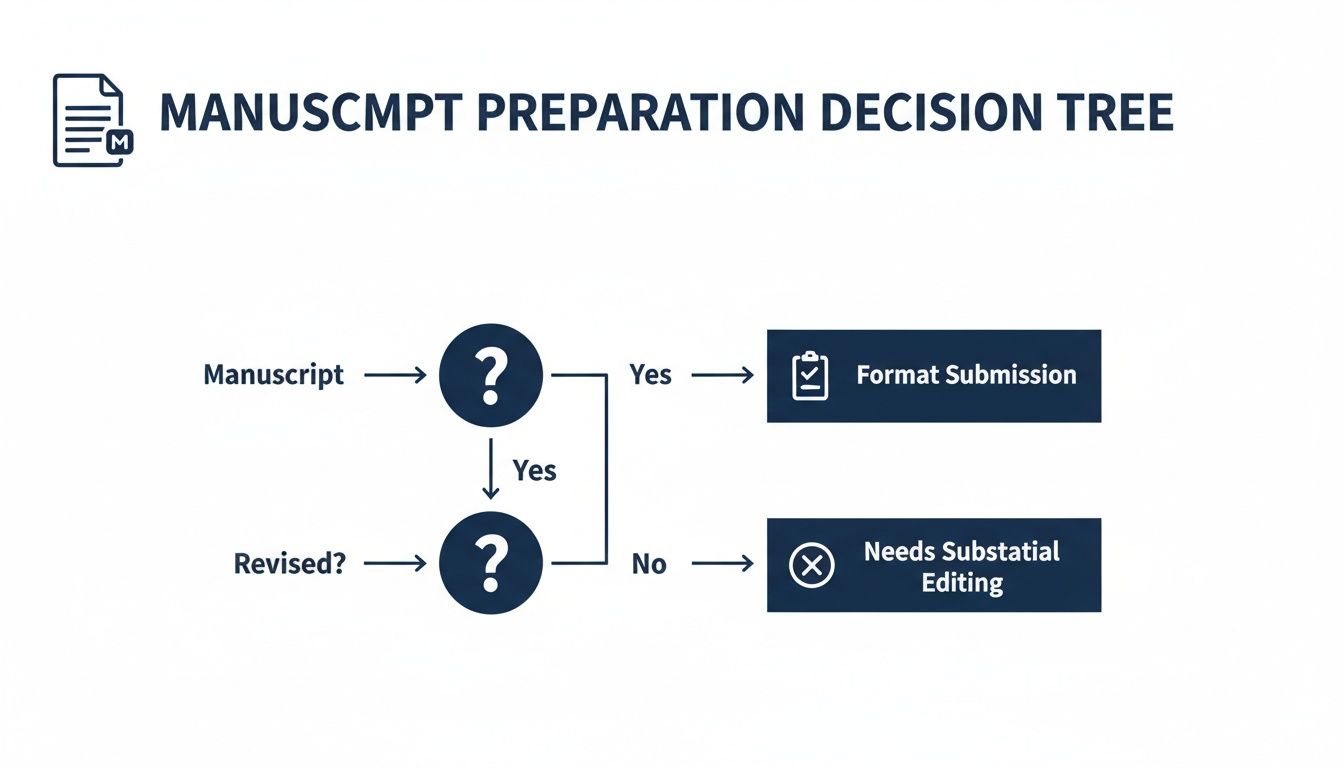
The bottom line is that a clean, well-formatted manuscript gives you more options and makes even the simplest converter work better.
Powerful Desktop Software
When you're ready to take the reins and demand a professional-grade result, dedicated desktop software is the only way to fly. Powerhouse tools like Calibre and Sigil are what serious indie authors use when they want to get their hands dirty.
Calibre is more than just a converter; it's a complete eBook library management system. It can convert just about any file format you throw at it into a clean EPUB and gives you deep control over metadata, cover images, and the table of contents. It's a fantastic middle ground for authors who want power without having to become full-blown web developers.
Sigil, on the other hand, is for the perfectionists. It's a true WYSIWYG (What You See Is What You Get) EPUB editor that lets you dive directly into the book's HTML and CSS code. This is how you achieve that pixel-perfect layout, fix stubborn formatting problems, and ensure your file is absolutely pristine. It takes some time to learn, but the power it gives you is unmatched. For a deeper dive, check out this guide on the best book formatting software currently available.
The real magic of using tools like Sigil is the ability to create an EPUB that truly reflects your authorial brand. It’s the difference between an off-the-rack suit and a tailored one; both work, but one just fits better.
Professional Conversion Services
But what if you want that bespoke, perfectly polished EPUB without spending weeks learning new software? That's when you call in the pros. Hiring a professional conversion service is an excellent choice for authors who value their time above all else.
When you hire an expert, you’re not just paying for a file conversion—you're paying for their experience. A pro knows the subtle formatting quirks of different retailers like Apple Books or Kobo. They know how to optimize images so they look sharp on any screen and how to write clean, lightweight code that guarantees a smooth reading experience for everyone.
This route is ideal if you want to ensure your book meets the highest industry standards without getting bogged down in technical details. It's an investment, for sure, but it frees you up to focus on what you do best: writing and marketing your next book.
To make the choice a little clearer, I've put together a quick comparison of these three approaches.
Comparison of EPUB Creation Methods
| Method | Best For | Pros | Cons |
|---|---|---|---|
| Online Converters | Quick drafts, simple text-only books, tech-averse authors. | Fast, free, and incredibly easy to use. No installation required. | Minimal control, often produces messy code, and struggles with complex formatting. |
| Desktop Software | Authors who want full control and a professional finish. | Highly customizable, powerful features, and produces clean, valid code. | Requires a learning curve, can be time-consuming, and needs some technical comfort. |
| Professional Services | Authors prioritizing quality and time, and those with complex books. | Guaranteed professional result, saves time, and handles retailer-specific needs. | Requires a financial investment, less hands-on control for the author. |
Ultimately, there's no right or wrong answer here. It’s all about balancing your time, budget, and how much creative control you want to have. Take a good look at your project and your own comfort level with technology, and then pick the path that will bring your book to life.
A Hands-On Guide to Converting Your Manuscript
Alright, your manuscript is clean, structured, and ready for the main event. Now we get to the fun part: the actual conversion. We're going to walk through this using Calibre, a powerhouse tool that's become an indie author's best friend. It’s completely free and hits that sweet spot between being easy to use and having seriously deep features if you need them.
Think of it this way: you’ve prepped all your raw ingredients (your formatted manuscript), and Calibre is the workshop where you’ll assemble the final product. Let's fire it up.
Importing and Setting Up Your Book
First things first, open Calibre and look for the big "Add books" button in the top-left. Give that a click, find your prepared manuscript file (your .docx, for example), and pull it in. You'll see your book pop up in the main library list.
Now, click on your book to select it, then hit the "Edit metadata" button. This screen is your eBook's passport. Don't rush through this part; good metadata is what helps readers find you on Amazon, Kobo, and everywhere else.
Here’s your checklist for this screen:
- Title and Author: Double-check that these are perfect. This is exactly how they'll show up in a reader's library.
- Cover Image: Find the cover area and click to upload your high-resolution JPG cover file. This is how you embed the cover right into the EPUB itself.
- Publisher and Tags: Add your publisher name—even if it's just "Your Name Books"—and some relevant keywords that fit your genre.
Getting this right from the start makes your eBook look polished and professional the moment someone downloads it.
Configuring the Conversion Settings
This is where the real magic happens. With your book still highlighted, click "Convert books." A window will open with a whole menu of options on the left. It looks like a lot, but don't worry, we only need to tweak a few key things to create an EPUB file that looks fantastic.
Before you do anything else, look at the top-right corner and make sure the "Output format" is set to EPUB.
Now, find the "Look & Feel" tab on the left. This section is all about the visual experience. I strongly recommend you check the box for "Embed all fonts in document." If you used any special fonts for chapter titles or specific text, this step is crucial for making sure they show up for the reader.
You'll also see options for paragraph spacing and indents. If you set up your styles correctly in your manuscript, you can usually leave these alone. But if you're wrestling with some stubborn formatting, this is the place to override it.
My Two Cents: The "Look & Feel" settings are your secret weapon for a professional-looking eBook. Spending an extra minute here to embed fonts and double-check your paragraph styles can make all the difference.
Building Your Table of Contents
A clickable table of contents isn't optional; it's essential. The good news? Because you took the time to use proper heading styles (H1, H2) in your document, Calibre does all the heavy lifting for you.
In that same conversion window, click on the "Table of Contents" tab. You'll see a line that says "Level 1 TOC (XPath expression)." To the right of it, there's a little magic wand icon. Click it.
Calibre scans your document and automatically generates the right code—it usually looks like //h:h1. This tells the software, "Hey, every time you see a Heading 1, make it a main entry in the table of contents." You can do the same for Level 2, pointing it to your H2 styles, to create a perfectly nested, multi-level TOC.
This is the payoff for all that prep work earlier. A task that could take ages manually is done in just two clicks. For those starting from a Word document, our specific guide on how to convert from Word to EPUB has some extra pointers for getting your source file just right.
Finalizing and Generating the EPUB
We're almost there. Before you hit the big "OK" button, navigate to the "EPUB Output" tab. There are two boxes here you should check:
- Preserve cover aspect ratio: Always. This stops retailers from stretching or squishing your beautiful cover art.
- Insert inline Table of Contents: I always check this. It adds a linked TOC as one of the first pages in your book, which is a nice touch on top of the e-reader's pop-out navigation menu.
Once you've got those settings dialed in, click "OK." Calibre will whir away for a moment, and then you'll see a new EPUB format appear in your library, right next to your original file.
And that's it! You've officially converted your manuscript. The next steps are just as important, though—we need to validate this file, check for any sneaky errors, and test it on different devices to guarantee a perfect reading experience.
Polishing and Validating Your Final EPUB File
You’ve converted your manuscript, and the EPUB file is sitting on your desktop. That's a huge milestone, but the work isn't quite done. This final stage—the polish and quality check—is what separates a clean, professional ebook from an amateur one that looks homemade.
Let’s be honest, automated tools are fantastic, but they aren't perfect. Now it’s time to peek under the hood, make a few small but critical adjustments, and run the one official check that ensures your book won't get rejected by major retailers.
A Gentle Introduction to EPUB Inspection
Conversion software like Calibre gets you 95% of the way there, but for that last 5% of polish, you might need more direct control. This is where a dedicated EPUB editor like Sigil becomes your best friend. Don't worry, you don't need to be a coder to use it.
Think of Sigil as a word processor for your finished EPUB. It lets you open up the file and see the simple HTML and CSS that control how everything looks. From here, you can make powerful tweaks that a converter might miss:
- Adjusting Spacing: Is a chapter title crammed right against the first paragraph? A quick "margin-bottom" CSS tweak in Sigil can give it the breathing room it needs.
- Fixing Font Oddities: Sometimes a single paragraph stubbornly refuses to use the right font. With an editor, you can go right to the source and correct it.
- Cleaning Up Artifacts: Conversion tools can sometimes leave behind stray blank lines or weird formatting quirks. Sigil’s code view makes these easy to spot and delete.
This is how you get that truly bespoke, professional feel for your ebook.
The Non-Negotiable Step: EPUB Validation
If you take only one thing away from this section, let it be this: you must validate your EPUB file before distribution. This isn't a friendly suggestion; it's a mandatory quality gate.
Retailers like Apple Books and Kobo run every single book they receive through an automated program called EPUBCheck. If it spits out even a single critical error, your book is automatically rejected. No human review, no second chances—just a rejection notice. Amazon’s Kindle platform is a bit more forgiving, but a file full of errors can still lead to some ugly display problems for your readers.
Validation is your safety net. It catches the hidden structural problems you’d never see just by looking at the book—things like broken internal links, missing image files, or improperly formatted code.
Running this check is your guarantee that the file will work flawlessly for every reader on every device. A validated file is a professional file.
How to Use EPUBCheck
The official EPUBCheck tool is a command-line utility, which can be a bit daunting for most authors. Fortunately, you don't have to touch it. Several free websites have built a simple, user-friendly interface on top of the exact same validation engine. My go-to is the EPUB Validator from the DAISY Consortium.
The process couldn't be simpler:
- Head over to the validator website.
- Click the button to upload your
.epubfile. - Give it a moment to analyze your file's entire structure.
If your file is perfect, you’ll get a wonderful green message: "Congratulations! No errors or warnings were found." If not, it will give you a detailed list of every issue, including the exact file and line number where the problem is. This makes it incredibly easy to jump back into Sigil and fix the specific problem.
This whole process exists for a very good reason. The EPUB format has come a long way since its origins as the Open eBook Publication Structure, first approved way back in 1999. It has evolved into a global standard, and this rigorous validation ensures an EPUB created in one country can be read flawlessly anywhere in the world. If you're curious about the history, you can explore the open standards from EDRLab.
Once your file passes validation, you can be confident it meets the technical standards required by every major ebook retailer. You're ready for the final step: getting it out to the world.
Getting Your EPUB Ready for Prime Time

You’ve done it. You have a clean, validated EPUB file ready to go. This is that final, exciting step where all your formatting work pays off and your book gets into the hands of readers. But hold on—before you rush to upload it everywhere, there's one last quality control check that can save you from a lot of future headaches.
You absolutely have to test your EPUB on a variety of real-world devices and apps. It’s a common pitfall to assume that because it looks perfect on your computer, it will look perfect everywhere. Trust me, it often doesn't. Your beautiful layout might look a bit wonky on a Kobo, a Nook, or the Kindle app on an iPhone. This is your last chance to see what your readers will see and fix any issues.
Kicking the Tires: Testing on Different Platforms
The goal here is simple: mimic the actual reader experience. Don't just open the file and call it a day. Go through the motions just like a customer would.
- Jump Around with the Table of Contents: Do the links work correctly? Does every chapter heading take you exactly where it should?
- Eyeball Your Images: Are they clear and positioned correctly? Try changing the font size on the device—do the images scale nicely or do they break the text flow?
- Check Your Fonts: If you went to the trouble of embedding custom fonts, you need to confirm they actually show up. Some e-reader apps are notoriously picky about this.
- Scan for Gremlins: Quickly flip through the entire book. Keep an eye out for weird line breaks, inconsistent spacing, or any other visual oddities that managed to sneak past the validation process.
I know this part feels tedious, but catching a glaring formatting error now is infinitely better than getting a one-star review about it later. As you get your EPUB ready for a global audience, you should also be mindful of its overall size for quicker downloads. Learning about reducing file size without losing quality can be a big help, even if the techniques for EPUBs differ slightly from other file types.
Uploading to the Major Stores
Once you're confident your file is rock-solid, it’s time to get it on the digital shelves. Every retailer—from Amazon to Apple—has its own dashboard, but the core process is pretty much the same.
You’ll be asked to upload your EPUB file and your cover image. Then, you'll fill in your book's metadata (title, author name, book description, keywords), set your price, and hit publish. It's usually that straightforward.
A Quick Word on Amazon KDP: It's important to remember that Amazon doesn't actually use the EPUB format on its Kindles. When you upload your EPUB to their KDP platform, their system converts it into a proprietary format (currently KFX). This is why it is absolutely critical to use their preview tools to see how your book will look after their conversion process.
Going Direct vs. Using a Distributor
So, how do you get your book into all these stores? You have two main paths.
You can go direct by creating publisher accounts on each platform: Amazon KDP, Apple Books, Barnes & Noble Press, and Kobo Writing Life. This route gives you the most control over your book listings and you get to keep a higher percentage of your royalties. The downside? It's a lot more work to manage everything across several different websites.
The alternative is to use an aggregator, sometimes called a distributor, like Draft2Digital or Smashwords. With these services, you upload your EPUB just once. They then send it out to dozens of smaller retailers and library services on your behalf. In exchange, they take a small cut of your royalties. This is a fantastic option if you want to "go wide" and reach more readers without the administrative burnout.
If this all feels a bit overwhelming, our general guide on https://barkerbooks.com/how-to-prepare-ebook/ is a great starting point for understanding the entire journey from manuscript to published book.
Common Questions That Always Come Up
When you're in the home stretch of creating your EPUB, a few common questions almost always surface. Honestly, getting these sorted out can be the difference between a smooth launch and a last-minute headache. Let's walk through the things I get asked most often.
Do I Really Need a Different ISBN for My Ebook?
Yes, you absolutely do. Think of an ISBN (International Standard Book Number) as a unique product code for one specific version of your book.
Your paperback has its own ISBN, the hardcover has another, and your EPUB needs its own as well. Retailers use this number to track sales and inventory for that specific format. Without a unique ISBN for your EPUB, you won't get accurate sales reporting or royalty payments. It’s non-negotiable.
What’s the Deal with EPUB vs. MOBI Anymore?
This used to be a much more complicated question, but thankfully, things have simplified. For a long time, the ebook world was a two-horse race:
- EPUB: The open, universal standard. Pretty much everyone who wasn't Amazon used it—Apple Books, Kobo, Barnes & Noble, you name it. It’s built on web tech like HTML, so it’s incredibly versatile.
- MOBI: The format Amazon used exclusively for their Kindle devices.
Here's the good news: in late 2022, Amazon finally threw in the towel on MOBI for new books. Now, you just upload your perfectly polished EPUB file directly to KDP. Amazon takes care of converting it to their own internal format (KFX) behind the scenes.
This is a huge win for authors. It means you can pour all your energy into creating one top-notch EPUB file that works everywhere, including the biggest ebook retailer on the planet.
How Should I Handle Images So They Don't Look Terrible?
Getting images right is so important. A beautiful image in your manuscript can easily turn into a pixelated mess or completely wreck the text flow on an e-reader if you’re not careful.
The secret is finding the sweet spot between image quality and file size. A massive, high-resolution image might look amazing, but it will bloat your EPUB file. This leads to slow downloads for your readers and can even cost you more in delivery fees on platforms like Amazon.
Here are my go-to best practices that have never failed me:
- Resolution: Stick to 72 DPI (dots per inch). It's the standard for all screens and looks perfectly crisp without adding unnecessary bulk.
- File Type: Use JPEG for pretty much everything, especially photos. The only time you should need a PNG is if your image requires a transparent background.
- Sizing: Don't just drag and drop a huge image file into your document. Resize it first! I usually aim for around 1200 to 1600 pixels on the longest side. That’s plenty big enough to look sharp on a high-res tablet but small enough to keep your file size manageable.
Nailing these few things will put you in a great position to finalize an EPUB that looks professional and is ready for readers everywhere.
Feeling like you're in over your head with the tech side of things? The team at BarkerBooks lives and breathes this stuff. We can handle everything from manuscript formatting to getting your book published worldwide, making sure it looks incredible on every device. Let us worry about the details so you can get back to writing. Find out more about our author services at BarkerBooks.