
You’ve spent hours, maybe even days, getting your document's design just right. The spacing is perfect, the headings are sharp, and the typography speaks for your brand. Then, you send it to a client or a printer, and… disaster. The layout is a complete mess.
Sound familiar? This is almost always a font problem. When you embed fonts into a PDF, you're essentially bundling the font files right into the document. It’s the single best way to guarantee your hard work looks exactly as you intended, no matter who opens it, what device they use, or where they are.
The Unseen Risks of Not Embedding Fonts
Skipping the font embedding step is a gamble. It's like building a beautiful house on a shaky foundation—it might look fine at first, but it’s bound to fall apart.
When someone opens your PDF on a computer that doesn't have your specific fonts installed, their system has to guess. It tries to find a close match, a process called font substitution. And that’s where everything goes wrong.
How Font Substitution Ruins Your Work
That "close match" font will almost certainly have different letter widths, heights, and spacing. It seems like a small detail, but it creates a massive domino effect that can wreck your entire layout.
Think about sending a meticulously designed brochure to a print shop. If the fonts aren't embedded, the printer’s computer might swap your unique, expensive brand font for something generic like Arial or Times New Roman. All of a sudden:
- Your layout collapses. Text starts overflowing its boxes, lines wrap in weird places, and images get shoved around the page.
- Your branding vanishes. The visual identity you carefully built with specific typography is gone, replaced by something that looks amateurish.
- The meaning changes. Special characters, accents, or even mathematical symbols can turn into empty boxes (we call them "tofu") or completely different characters.
This isn't just about aesthetics. It leads to very real problems: expensive reprints, a diluted brand image, and a final product that looks sloppy and unprofessional. We dive deep into how much typography matters in our guide to book design and layout services.
A Longstanding Solution to a Critical Problem
This isn't a new issue. Embedding fonts has been a fundamental rule in professional publishing since digital documents first became a thing. In the early days, before this became standard practice, historical data suggests that a staggering 70% of PDFs shared in business settings had font substitution errors.
For a publisher like BarkerBooks, having guided over 7,500 authors in 91 countries, this is non-negotiable. Embedding fonts is what ensures a book looks perfect on Amazon Kindle, Apple Books, and every other platform. You can read more about the importance of embedding fonts in PDFs and how it protects your design's integrity.
The Real Impact of Font Embedding
Here’s a quick breakdown of what happens when you do (and don't) embed your fonts.
| Scenario | Without Embedded Fonts (The Risk) | With Embedded Fonts (The Solution) |
|---|---|---|
| Viewing on a New Device | The viewer’s system substitutes fonts, often with poor results. The layout breaks, and text reflows unpredictably. | The document displays perfectly, using the exact fonts you chose. Your design is preserved. |
| Professional Printing | The print shop’s software might swap fonts, leading to incorrect output and costly reprints. Your brand identity is lost. | The file prints exactly as it appears on your screen. The final product is professional and brand-consistent. |
| Archiving & Compliance | The document may become unreadable in the future as old fonts become obsolete. It fails to meet archival standards. | The PDF is self-contained and future-proof. It meets standards like PDF/A for long-term preservation. |
Ultimately, embedding isn't just a box to check; it’s a fundamental part of creating a reliable, professional document.
Key Takeaway: Font embedding is not an optional technical step; it is essential insurance for your document's design, branding, and readability. It guarantees that your creative vision is preserved perfectly across every device and platform.
How to Embed Fonts in Your Favorite Software
Okay, theory is one thing, but let's get practical. Knowing you need to embed a font into a PDF is a great start, but the real trick is finding the right buttons and checkboxes in the software you actually use every day.
The good news is that most modern programs make this pretty easy. Usually, the setting you need is tucked away in the "Save As" or "Export" options. Let's walk through how to do this in the most common tools, so your final file is print-ready and looks exactly as you intended.
Embedding Fonts in Microsoft Word
We all use Microsoft Word, and thankfully, it has a simple, built-in option to embed fonts directly. This is a great feature because it means that even if you share the Word document itself, your collaborator will see it correctly. More importantly, this setting carries over when you export to PDF.
You'll find the option buried in the settings menu. Here’s how to get there:
- Go to File > Options. This will open a new dialog box.
- Click on the Save tab on the left.
- Scroll all the way down to the section titled "Preserve fidelity when sharing this document."
- Just check the box for "Embed fonts in the file."
You’ll see a couple of sub-options pop up. "Embed only the characters used in the document" is essentially font subsetting—perfect for keeping file sizes down. The other option is useful if someone else will be editing the document with the same fonts. For most people, just enabling the main setting is enough.
My Go-To Tip: I always embed fonts at the Word document level first. It makes the final step almost foolproof. When you later go to File > Save As and choose PDF, Word automatically carries those embedded fonts into the final PDF. No extra steps, no surprises.
Mastering Font Embedding in Adobe InDesign
For professional layout and design, Adobe InDesign is the industry standard for a reason. It gives you incredible control over every tiny detail of your PDF, including some really sophisticated options for font embedding. This is where you can create a technically perfect, print-ready file.
When you’re ready to create your PDF, you’ll use the Export menu.
- Head to File > Export.
- Choose Adobe PDF (Print) from the "Save as type" dropdown and hit Save.
- In the Export Adobe PDF window that appears, find the Advanced tab on the left.
- The "Fonts" section is what you're looking for. The key setting here is "Subset fonts when percent of characters used is less than:"—the default is 100%.
Leaving this at the default 100% is exactly what you want for almost any project. It means that if you use even a single character from a font, InDesign will automatically create a font subset. This is the best of both worlds: it guarantees every font is included while optimizing the file size by not embedding entire, unused character sets.
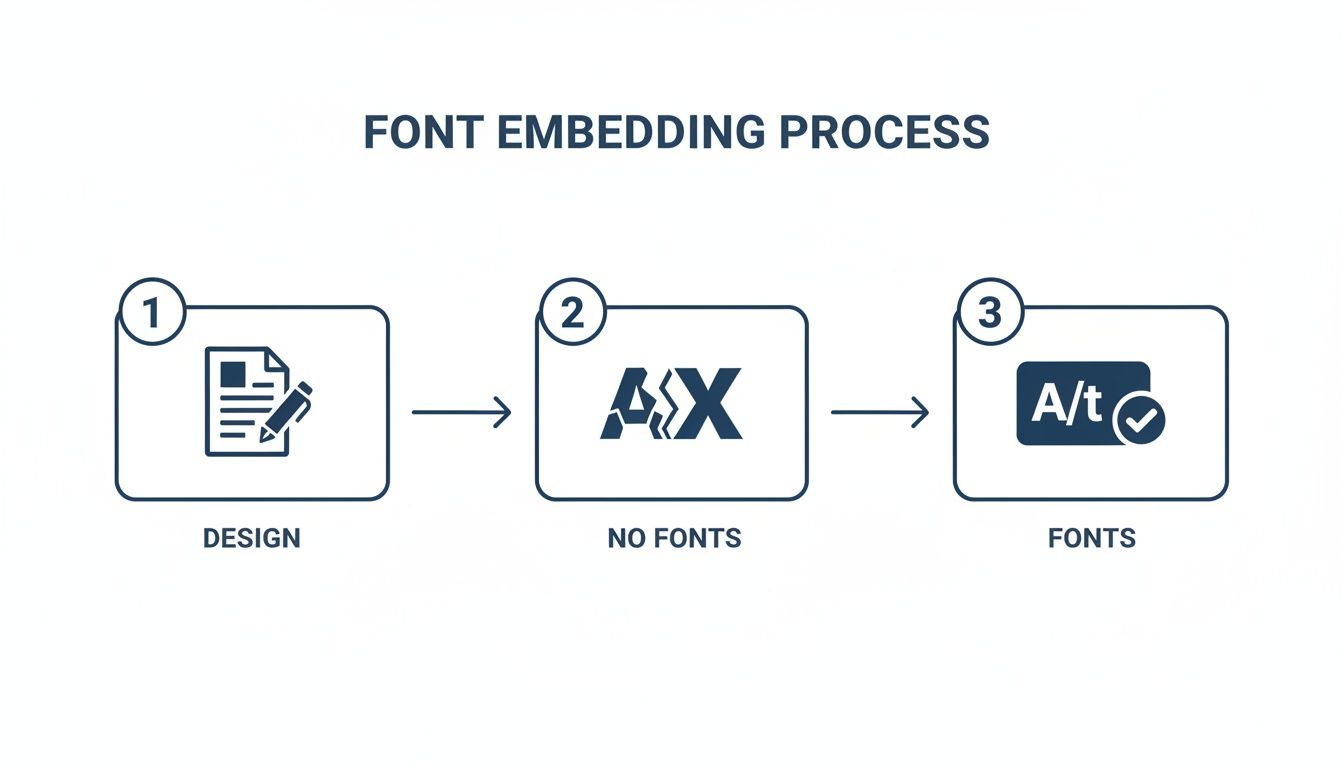
This workflow is crucial. Moving from your design to a final, reliable document requires a conscious decision to embed fonts. It’s what prevents the visual chaos of font substitution down the line.
Handling Fonts in Scrivener
Scrivener is a fantastic tool for writers, but when it’s time to go from writing to production, you'll need to use its "Compile" feature. While it’s not as granular as InDesign, Scrivener still gives you the basic controls you need to handle fonts correctly.
The whole process happens during compilation, which is when Scrivener assembles your manuscript into a single file.
- Open the File > Compile menu.
- In the top right, make sure you've selected "Compile for: PDF (.pdf)".
- Look for a gear icon or an "Advanced Settings" button, which will let you tweak the PDF options.
- Inside those settings, you should find an option related to embedding or subsetting fonts. Make sure it's enabled.
For an even more robust solution, see if your version of Scrivener allows you to export as a PDF/A-1a or PDF/A-2b compliant file. The PDF/A standard mandates font embedding, so choosing this option automatically takes care of it for you. It's a great choice for ensuring long-term archival stability. If you're weighing your options for this stage, check out our guide on book formatting software for more insights.
Once you have your perfectly formatted PDF, you might need to manage its content. For a smart way to do that, you could explore Effortless PDF to Notes Conversion with AI. It can help you pull key information from your finalized documents.
A Closer Look at Font Licensing and Subsetting
Getting the settings right to embed a font into a PDF is a major win, but don't celebrate just yet. Two other critical details often get missed: licensing and file size. Just because you have a font file sitting on your computer doesn't mean you have the legal green light to embed it in a document you plan to share. And on the flip side, embedding entire font files can bloat your PDF, making it a pain to upload and download.
Let's break down these two areas so you can finish your documents with confidence, knowing they're both legally sound and technically efficient.
Understanding Font Licensing Restrictions
Every font is technically a piece of software, and just like any software, it comes with a license—the End User License Agreement, or EULA. This is the fine print that spells out exactly what you can and can’t do with that font. It's a surprise to many designers and authors, but a lot of "free" fonts are only free for personal projects and strictly forbid embedding for commercial use.
If you try to embed a font with a restrictive license, you can hit a few different snags:
- Software Rejection: Your PDF creation tool, like Adobe InDesign, might just say "nope" and refuse to embed the font, spitting out an error message.
- Legal Trouble: Distributing a PDF with an improperly licensed font, especially if you're selling it, could land you in hot water with the font foundry.
- Publisher Rejection: Platforms like Amazon KDP have rigid technical specs. A file with licensing conflicts is an easy target for rejection, which can throw a wrench in your publishing timeline.
The good news is that checking a font's embedding permissions is usually pretty simple. Both Windows and macOS have built-in ways to do this.
How to Check Font Embedding Rights
On a Windows PC, just find the font file (a .TTF or .OTF), right-click it, and choose "Properties." Head over to the "Details" tab, and you'll see a line item for "Font embeddability." It’ll tell you exactly what’s allowed.
On a Mac, fire up the Font Book application. Select the font you're curious about and hit Command + I (or navigate to File > Get Info). The info panel that pops up will show the font's license and permissions, making it clear whether you can embed it.
My Two Cents: Always, always check the license before you get too attached to a font. A quick 30-second check can save you from massive legal and technical headaches down the road. If the license is murky or too restrictive, just find an alternative. It's not worth the risk.
The Power of Font Subsetting for Smaller Files
Okay, so you've confirmed your font is legal to embed. Now let's talk about being efficient. When you embed a font, you can either embed the whole thing or just a piece of it.
- Full Embedding: This shoves the entire font file into your PDF. Every character, number, symbol, and special glyph it contains is included, even if you didn't use them.
- Font Subsetting: This is the much smarter move. It only packs the specific characters—the glyphs—that you actually used in your document.
Think about it this way: your manuscript might only use 80 or 90 unique characters from a font family that contains over 2,000. Subsetting cherry-picks just those 80-90 glyphs, while full embedding would cram in all 2,000. The impact on your file size is huge—it can easily shrink the font's data footprint by over 90%.
Smaller PDFs aren't just a "nice-to-have." They upload faster, download quicker for your readers, and won't get bounced by email servers with stingy attachment size limits. For authors wrestling with long manuscripts, keeping file size in check is essential. We cover more on this in our guide to Kindle Direct Publishing formatting.
Thankfully, most professional software, including Microsoft Word and Adobe InDesign, is smart enough to subset fonts by default when you export to PDF. For almost any document you create, from a business report to a novel, it's the right way to go.
So, you’ve put in the hard work, tweaked your export settings, and generated your PDF. But you're not done just yet. There's one last, critical step before you send that file off to a client, publisher, or print shop: you have to verify the fonts are actually embedded.
Skipping this final check is a rookie mistake. It’s like sending a package without making sure everything is inside. It can lead to some seriously frustrating and expensive problems down the line, and it only takes a minute to get it right.
The good news is you don't need any fancy software. You can do this with the free Adobe Acrobat Reader, which is pretty much the universal standard for viewing PDFs anyway. This quick quality control check is your final seal of approval.
Cracking Open the Document Properties Panel
All the information you need is tucked away inside the PDF's properties. This panel is the metadata hub for your file, and it holds the key to your font situation.
First, open your freshly exported PDF in Adobe Acrobat Reader. Head up to the menu bar and click File > Properties. If you're a fan of keyboard shortcuts, just hit Ctrl+D on a Windows machine or Cmd+D on a Mac.
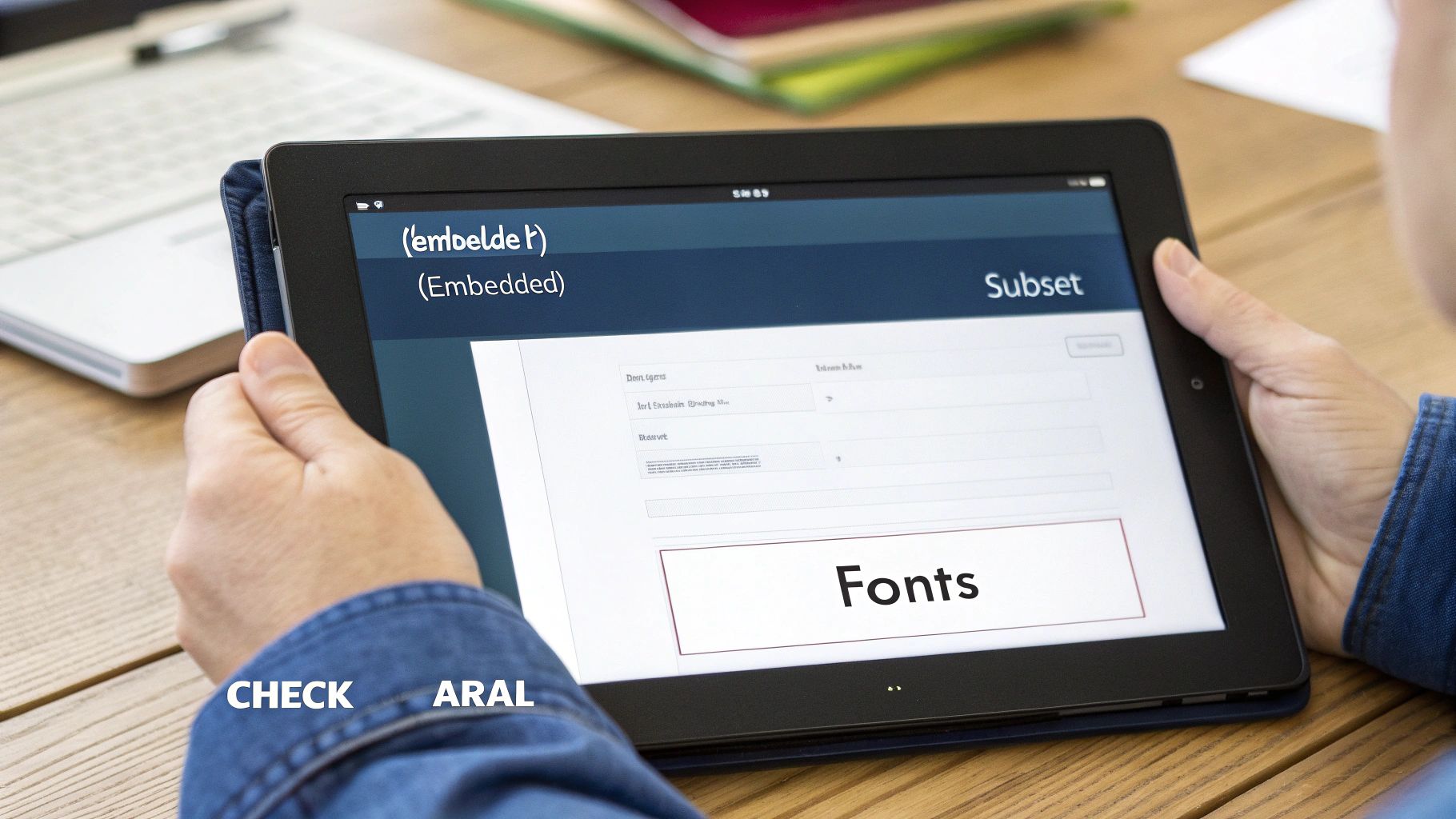
A new window will pop up. Just click on the Fonts tab, and this is where you'll see if your efforts paid off. You'll find a complete list of every font used in the document. Now, you just need to scan the list and check the status next to each font's name.
What to Look For
You’re looking for one of two magic phrases next to every single font. Seeing either of these confirms that the font data has been successfully packaged inside the PDF file.
- (Embedded Subset): This is what you'll see most of the time, and it's perfect. It means your authoring tool was smart enough to only include the characters you actually used. This keeps the file size lean and efficient.
- (Embedded): This indicates that the entire font file was included. It might make your PDF a little bigger, but it's still a success. The font is safely inside and will display exactly as you intended.
If you see one of those two phrases next to every font, you can relax. Your PDF is good to go.
The Professional Standard: If a font is listed without either "(Embedded Subset)" or "(Embedded)," the process failed. The document is a ticking time bomb, vulnerable to font substitution. You'll have to go back to your original document and fix your export settings.
This isn't just a "nice-to-have" step; it's a non-negotiable part of professional publishing. Industry estimates show that 75% of commercial printers will flat-out reject files with missing fonts. Why? Because font substitution can wreck your layout, distorting page metrics by 10-20%.
For self-publishers on platforms like BarkerBooks, this check is crucial. It helps avoid the kind of preview failures that plague over a third of raw file exports. If you really want to get into the weeds, you can read Adobe's own technical notes on their Acrobat font policies.
Taking a moment to run this check builds confidence, saves you from endless back-and-forth with collaborators, and guarantees your document looks perfect for its audience.
Solving Common Font Embedding Issues
Even when you do everything right, font embedding can sometimes throw you a curveball. You follow all the steps, export your PDF, and then discover a font is missing, the file is gigantic, or weird symbols have replaced your text. It happens to everyone.
Instead of getting frustrated, I find it helps to treat these issues as part of the final quality check. These little snags are often just your software flagging a problem—like a font license or a forgotten export setting—that needs a second look. Let’s walk through the most common headaches I've seen and how to fix them without breaking a sweat.
When a Font Refuses to Embed
Nine times out of ten, when a font just won’t embed, the license is the culprit. As we’ve covered, some fonts have restrictions baked right in that physically block them from being included in a PDF. If you’ve double-checked your export settings and the font properties still don't show it as "Embedded," the license is almost always the problem.
Your software isn't broken; it's just following the rules set by the font designer. The only real way forward is to swap it out for a different font that has a more permissive license.
A less common but possible cause is a corrupted font file. If you're absolutely certain the license allows embedding, try reinstalling the font. A fresh download from the source can often clear up hidden file integrity issues that are getting in the way.
My Pro Tip: Don't get married to a single font early in the design process. I always keep a few backup options with flexible licenses on hand. This simple habit can save you from a last-minute design crisis right before a deadline.
Fixing a Bloated PDF File Size
Did your PDF’s file size suddenly balloon after embedding fonts? That’s a classic sign you’ve embedded the entire font family instead of just a subset. A full embed packs in every single character the font supports—often thousands of them—whereas a subset intelligently includes only the specific characters you actually used in the document.
The difference is huge. While font embedding can increase a document's size by 10-30%, proper subsetting—a technique used in 95% of professional workflows—keeps that increase under 5%. This isn't just a "nice to have"; it's essential in professional publishing. A 2020 study found that non-embedded PDFs led to 68% of quality rejections from major printers. For publishers like BarkerBooks, ensuring font consistency for authors across 91 countries makes this a non-negotiable step. You can dive into the nitty-gritty by exploring the advanced settings for font handling in professional tools.
The fix is simple. Head back to your software's PDF export settings. Look for an option that says "Subset fonts" or "Embed only the characters used" and make sure it’s checked. Re-exporting the file should shrink it down dramatically without changing how it looks.
Troubleshooting Missing Characters or Glyphs
Here’s another frustrating one: the font seems to embed correctly, but certain characters—like accented letters, special symbols, or ligatures—show up as empty boxes (we call them "tofu") or the wrong symbol entirely. This usually happens for one of two reasons.
- The font doesn't have that glyph: The font you chose might not even include the character you need. This is a common issue with free or highly decorative fonts that often have very limited character sets.
- Subsetting went wrong: On rare occasions, the subsetting process might mistakenly leave a character out. This can happen if the character is used in an unusual spot, like in hidden metadata or form fields.
First, check the font’s character map (you can use built-in tools like Windows Character Map or macOS Font Book) to confirm the glyph actually exists. If it's not there, you have no choice but to switch to a more complete font. If the glyph is there, try re-exporting the PDF, but this time, turn off subsetting and do a full embed. It will make the file larger, but it's a reliable fix when a specific character is critical to your document.
Diving Deeper: Your Font Embedding Questions Answered
When you're wrestling with getting fonts to look right in a PDF, the same questions tend to pop up again and again. Let's tackle some of the most common ones I hear from authors and designers.
What's the Real Difference Between Embedding and Subsetting?
Think of it this way: fully embedding a font is like packing your entire bookshelf for a weekend trip just in case you want to read something. It packs the entire font file—every single character, number, and symbol, whether you used it or not. It works, but it can make your PDF unnecessarily heavy.
Subsetting, on the other hand, is the smarter way to pack. It takes a quick look at your document and only packs the specific characters (or glyphs) you actually used.
For just about everything you'll ever create, from a simple flyer to a 400-page novel, subsetting is the way to go. It ensures your document looks exactly as intended while keeping the file size small and manageable. Most modern tools, like Adobe InDesign and even Microsoft Word, are smart enough to do this by default.
The bottom line? Subsetting is like packing only the clothes you plan to wear. Full embedding is packing your entire closet. One is far more efficient.
Can I Really Get in Trouble for Embedding a "Free" Font?
You absolutely can. This is a trap that trips up a lot of people. That "free" font you downloaded likely came with a license that only covers personal, non-commercial use. The moment you embed it in a PDF you plan to sell or distribute widely, you might be breaking the rules.
Ignoring the license can lead to some serious headaches:
- Legal trouble from the font's designer or foundry. It happens.
- Flat-out rejection from printers or online platforms like Amazon KDP, who check for these things.
- Technical roadblocks, where your software might even refuse to embed the font because of built-in licensing restrictions.
Before you get too attached to a font, always hunt down its license agreement—it's usually in a file called EULA or license.txt. If the license is confusing or explicitly forbids embedding, the safest move is to find an alternative. A quick check upfront can save you a world of hurt later.
Why Did My PDF File Size Suddenly Explode?
I've seen this happen countless times, and it almost always comes down to one of two things.
First, the most common culprit is that you've accidentally done a full embed instead of a subset. Dive back into your software’s PDF export settings. Look for an option that says something like "subset fonts" or "only embed characters used" and make sure it’s checked. Re-exporting the file with that setting turned on usually solves the problem instantly.
The second, less common reason is that the font itself is a monster. Some highly decorative script fonts, or complex typefaces built to support multiple languages, can have huge file sizes. Even subsetting them can result in a bloated PDF. If you've double-checked that subsetting is active and the file is still too big, you may have to make a tough choice and switch to a more streamlined font.
Does Creating a PDF/A File Handle Embedding for Me?
Yes, it does! This is one of the most powerful features of the PDF/A format. The "A" stands for Archival, and the whole point of this standard is to create a perfectly self-contained document that will look the same decades from now.
A non-negotiable rule of the PDF/A standard is that all fonts must be fully embedded. When you export your file as a PDF/A, your software is forced to do all the embedding work for you. There's no room for error. This is precisely why so many publishers, academic institutions, and government agencies insist on it—it eliminates the guesswork and guarantees a portable, complete document.
At BarkerBooks, we navigate all the technical minefields of publishing so you can stay focused on your story. From professional formatting and font embedding to worldwide distribution, our team makes sure your book looks flawless everywhere. Turn your manuscript into a masterpiece with BarkerBooks today!