
Turning a Word doc into a professional-looking EPUB is a rite of passage for many authors. The whole process really boils down to three key stages: meticulously cleaning up your manuscript, picking the right conversion tool for the job (like the ever-reliable Calibre), and then rigorously testing the final file.
Of all these steps, starting with a pristine Word document is, without a doubt, the most critical. Any formatting gremlins hiding in your manuscript will turn into full-blown monsters in your eBook, creating a frustrating and unreadable experience for your audience.
Why a Clean Word Doc Is Your Starting Point
Before you even think about hitting that "convert" button, you need to internalize the golden rule of eBook formatting: garbage in, garbage out. This isn't just a clever saying; it’s the honest truth of this process. Your Word document is the architectural blueprint for your EPUB. Every hidden formatting quirk, inconsistent style, and wonky image placement gets magnified tenfold during conversion.
Think of it like building a house. You'd never pour a foundation on a patch of lumpy, debris-strewn dirt. In the same way, you can't expect a polished, professional EPUB to emerge from a messy manuscript. A little bit of prep work upfront will save you from a world of headaches down the road.
The Problem with Direct Conversion
Let's be clear: Microsoft Word was built for print. It's fantastic for creating documents with a fixed layout, where you decide exactly where every element sits on a static page. But EPUBs are a different beast entirely. They are designed to be fluid and reflowable, adapting gracefully to everything from a tiny phone screen to a large tablet, all while letting the reader adjust fonts and text sizes on the fly.
This fundamental difference is why a direct, unprepared conversion usually ends in disaster. All those manual tabs, extra spaces between paragraphs, and forced page breaks you used to make your Word doc look "just right" create utter chaos in a reflowable format. The conversion software tries its best to interpret these print-based commands, but the results are often a mess:
- Weird spacing: You'll see random, giant gaps between paragraphs.
- Messed-up chapter breaks: A new chapter might start halfway down a screen, or not break at all.
- Wonky text: The font could be microscopic, or the lines could be squished together.
- A missing Table of Contents: Without proper heading styles, the software has no idea how to build a clickable TOC.
The real goal of cleaning your document is to swap out all that manual, visual formatting for clean, structural information. You’re not telling the software how something should look; you're telling it what it is. This is a chapter title. This is a blockquote. This is an image. The EPUB format itself will then handle the appearance.
Word has been the go-to for manuscript drafting since the early 2000s, but it was never built to export EPUBs natively. This has fueled a massive demand for conversion tools; online services alone have processed over 510 million file conversions, with Word-to-EPUB being a huge chunk of that. You can get a sense of this scale over on Zamzar.com. Understanding this core limitation of Word is the first real step toward a successful conversion.
Prepping Your Manuscript for Flawless Conversion
Before you even think about hitting that "convert" button, we need to talk about your Word document. This is, without a doubt, the most critical part of the entire process to convert a word doc to epub. Skipping this prep work is like trying to build a house on a swamp—the end result will be a mess, guaranteed.
Every minute you spend cleaning up your manuscript now will save you hours of hair-pulling frustration later. You're essentially translating your document's DNA from "print-first" to "eBook-native." This means getting rid of all the visual formatting meant for a static page and replacing it with clean, structural code that any eReader can interpret correctly.
This diagram perfectly illustrates the point: a messy document always creates a broken EPUB. A clean, properly structured document is the only path to a professional-looking final product.
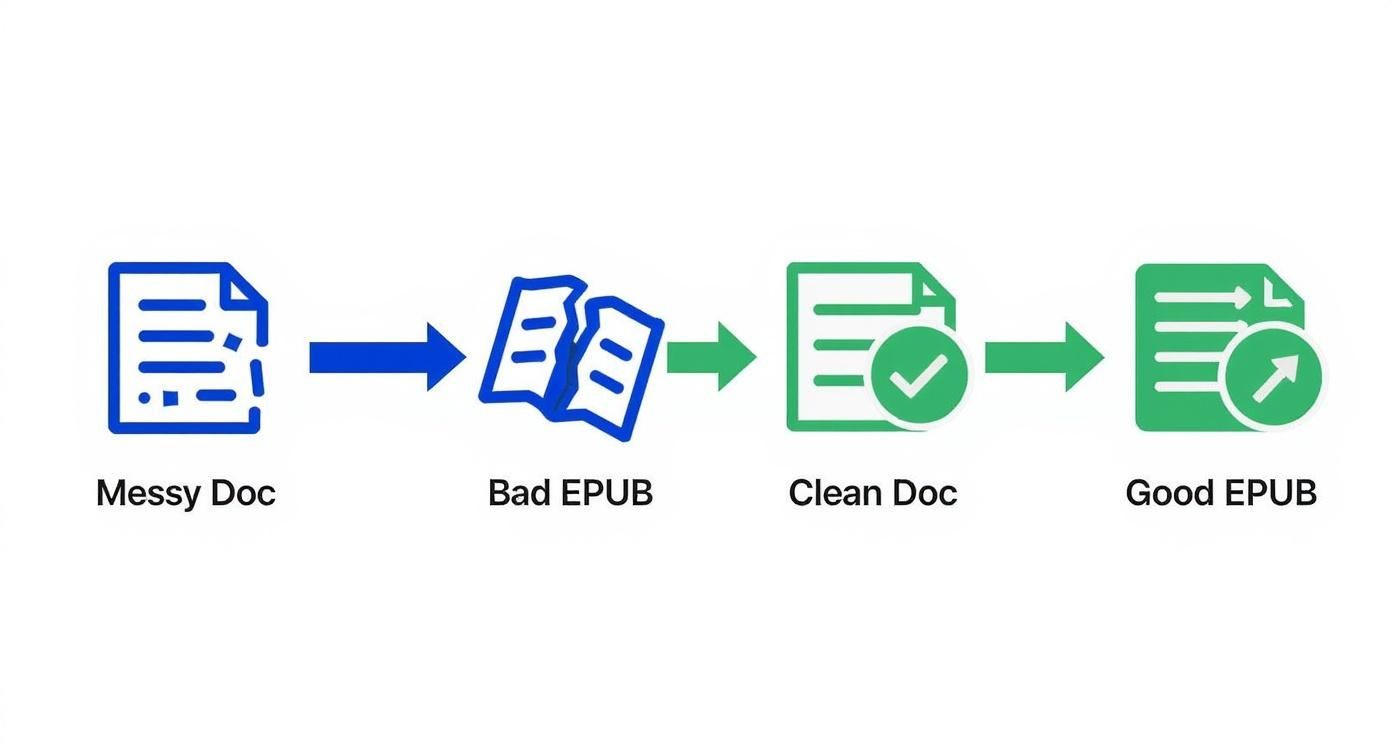
It’s that simple. The quality of your input file directly determines the quality of your output file.
Embrace Word Styles for Structure
Your single most powerful tool here is Microsoft Word's "Styles" feature. Instead of just manually making chapter titles bigger and bolder, you need to assign them a proper heading style. This is how you give the document a logical structure that the conversion software can actually read.
- Heading 1: Use this for your main chapter titles. That means "Chapter 1," "Prologue," "Acknowledgments"—anything that deserves its own spot in the table of contents.
- Heading 2: Perfect for any subheadings you have within a chapter.
- Normal: This is for all your body paragraphs. All of them.
Using styles isn't just a suggestion; it's a must. Why? Conversion programs scan for Heading 1 styles to automatically build the interactive, clickable Table of Contents for your EPUB. If you don't use them, your readers won't have this crucial navigation tool.
I see this all the time: authors create "fake" headings by just changing the font. To the software, that's still just a "Normal" paragraph with some makeup on. You have to use the actual Heading 1 and Heading 2 styles for the program to understand your book's hierarchy.
Taming Your Images
Images are a notorious source of conversion headaches. They might look perfect in your Word doc, but in the EPUB, they can end up stretched, shrunken, or floating in the middle of nowhere.
The fix is surprisingly simple.
For every single image in your manuscript, right-click it, find "Wrap Text," and choose "In Line with Text." This is the only wrapping style that plays nicely with the reflowable format of an EPUB. It anchors the image within the text flow, treating it like a giant letter so it stays exactly where it belongs.
While you're at it, add alt text to each image for accessibility. Just right-click the image, select "Edit Alt Text," and write a short, clear description of what's in the picture. This allows screen readers to describe the image for visually impaired readers.
The Great Formatting Purge
Alright, it's time to go on a search-and-destroy mission for all the hidden formatting gremlins that will wreck your EPUB's layout. The goal is a squeaky-clean document that relies on styles, not manual tweaks.
Fire up Word's "Find and Replace" tool (Ctrl+H on Windows, Cmd+H on Mac) and get to work on these common culprits:
- Double Spaces: Search for two spaces (" ") and replace them all with a single space (" "). Keep doing this until Word can't find any more. Double spaces are a leftover from typewriter days and create distracting gaps on eReaders.
- Manual Page Breaks: EPUBs ignore these completely. Your chapter breaks should be defined by the Heading 1 style, not by hitting Ctrl+Enter. Remove them.
- Tabs for Indentation: Never, ever use the Tab key to indent your paragraphs. Search for the special character
^t(that's Word's code for a tab) and replace it with nothing. Proper indentation should be defined once in your "Normal" style settings. If you need a deep dive, these manuscript formatting guidelines are a fantastic resource.
Taking a systematic approach, perhaps by automating document workflows where possible, can ensure you don't miss anything during your cleanup pass.
Dedicating a little time to this prep work now sets you up for a smooth, successful conversion. Your future self—the one who isn't tearing their hair out over a mangled EPUB—will thank you profusely. This clean foundation is the absolute key to an eBook that looks polished and professional on any device.
Now that your Word document is clean and ready for action, it’s time to pick your conversion tool. Let’s be clear: there’s no single “best” way to turn a Word doc into an EPUB. The right choice really comes down to your book's complexity, your budget, and how much you enjoy tinkering under the hood.
Think of it like this. A simple online converter is like a scooter—great for a quick, straightforward trip across town. A robust program like Calibre is the reliable SUV, packed with features and ready for a long road trip with lots of luggage. And then you have tools like Sigil, which are more like a custom-built race car—offering ultimate precision, but only if you know how to drive it.
Each one has its purpose. The trick is matching the tool to the job so you don't end up with something that’s too basic for your needs or way too complicated for a simple novel.
To help you decide, here’s a quick breakdown of the most popular methods.
Comparison of Word to EPUB Conversion Tools
This table compares the most popular methods for converting Word documents to EPUB, helping you choose the best tool based on your specific needs and technical skill level.
| Tool | Best For | Ease of Use | Control Level | Cost |
|---|---|---|---|---|
| Online Converters | Quick drafts, simple text-only books, non-technical users | Very Easy | Low | Free |
| Microsoft Word | Basic EPUBs directly from your source document | Easy | Low | Part of MS Office |
| Calibre | Most indie authors; offers great control without coding | Moderate | High | Free |
| Pandoc | Tech-savvy users who want to automate workflows | Difficult | Very High | Free |
| Sigil | Fine-tuning and manually editing EPUB code | Difficult | Very High | Free |
Ultimately, the best tool is the one that gets your book into readers' hands without causing you a massive headache.
When to Use Simple Online Converters
For a lot of authors, especially if you're working on a straightforward, text-only novel, a free online converter might be all you need. These are browser-based tools that couldn't be simpler: upload your .docx file, click a button, and download the finished EPUB.
They're genuinely perfect for a few scenarios:
- Quick Drafts: You just want to create a test version to see how your book looks on an eReader without installing any new software.
- Simple Projects: Your book is all text—a novel, a collection of essays, or a memoir with zero images, footnotes, or fancy formatting.
- No Tech Skills: You're not comfortable learning new programs and just want the fastest, simplest path from A to B.
But this simplicity comes at a price. You get almost no control over the final product. You can't edit the metadata, embed custom fonts, or fine-tune the table of contents. If the conversion botches your formatting, your only move is to go back to the Word doc, guess at a fix, and re-upload it, crossing your fingers for a better result.
Calibre The All-in-One Powerhouse
For the vast majority of indie authors, Calibre is the undisputed king of eBook management and conversion. It's a free, open-source program that’s part library, part converter, and part editor. The interface might look a little dated, but don't let that fool you—its power is unmatched by any other free tool out there.
With Calibre, you get a level of control that online tools just can't touch. You can meticulously edit your book's metadata (author, publisher, series info), add your cover image with a single click, and dive into a whole world of detailed conversion settings. This is where you can tell the software exactly how to handle chapter breaks, paragraph spacing, and image processing.
The real magic of Calibre is in the 'Look & Feel' settings during conversion. Here, you can tell it to remove extra spacing between paragraphs or even enable 'Heuristic Processing' to intelligently clean up common formatting gaffes you might have missed during your prep work.
This granular control means you can produce a much more polished, professional EPUB. It’s the perfect middle ground, giving you pro-level features without forcing you to learn code. It takes a bit more time to get the hang of than a simple online tool, but the payoff in quality is absolutely worth it. For a deeper look into various options, you can explore our guide to the best book formatting software available today.
Advanced Tools for Ultimate Precision
For those who demand absolute, pixel-perfect control over their final EPUB, there are even more advanced options. I'll be honest, these aren't for the faint of heart and have a steep learning curve, but they give you direct access to the EPUB's underlying code.
- Pandoc: This is a command-line "universal document converter." It's incredibly powerful but has no graphical interface. You run it by typing commands into a terminal, which makes it a favorite for tech-savvy users looking to automate their conversion workflows.
- Sigil: This is a dedicated, what-you-see-is-what-you-get (WYSIWYG) EPUB editor. While you can use it for conversions, its real strength is opening up an existing EPUB and letting you edit the HTML and CSS directly. If you spot a tiny formatting error no other tool can fix, Sigil lets you go in and correct the code by hand.
These tools offer the highest possible degree of control, but they are definitely overkill for most authors who just want to convert their novel. They're best for creating complex eBooks with intricate layouts, multimedia, or custom styling.
Choosing the right tool is a strategic move that affects both your book's quality and your sanity. The global eBook market is projected to hit $18.02 billion by 2025, with around 300 million self-published eBooks sold each year. This just goes to show how vital it is for indie authors to have access to tools that let them compete. As you can see from eBook market trends on automateed.com, getting this right matters. Picking the right converter is your first step to making sure your work stands out.
A Hands-On Guide to Converting with Calibre
Since Calibre is pretty much the go-to free tool for authors, it’s worth walking through exactly how to use it. We're going to focus only on the settings that actually make a difference when you convert your Word doc to EPUB. No getting bogged down in tech-speak—just a clear path to a professional-looking ebook.
The whole process is faster than you might think. Once your manuscript is prepped and cleaned up, the conversion itself can be surprisingly quick. In fact, with a properly formatted novel, you can churn out a high-quality EPUB in less than three minutes. The files these tools create are built on EPUB 2 or EPUB 3 standards, so they’ll play nicely with all the major ebook platforms. If you want to see just how fast it can be, check out this three-minute guide on YouTube.
First thing's first: after installing Calibre, you'll add your clean .docx manuscript to the library. Then, just select your book and hit the big "Convert books" button to get started.
Getting Your Metadata Right
The first screen you’ll land on is "Metadata," and it's absolutely critical. This is how your book shows up in e-stores and on readers' devices, so don't just blow past it.
- Title and Author: Double-check that these are spelled perfectly.
- Series and Number: If it’s part of a series, fill this out. It makes it dead simple for readers to find the next book.
- Cover Image: Click the little folder icon and upload your professionally designed cover. This is non-negotiable.
Think of metadata as your book's digital storefront. If the author's name is misspelled or the title has a typo, you've made it almost impossible for readers to find your work on Amazon KDP or Apple Books. Get this right.
Once your metadata is locked in, you can dive into the settings that really shape the reading experience.
Fine-Tuning the Look and Feel
Over in the left-hand menu of the conversion window, find the "Look & Feel" tab. This is where you get to control the visual guts of your ebook and iron out some of the most common formatting wrinkles.
Here are the two settings that will give you the most bang for your buck:
- Layout: Find the option that says "Remove spacing between paragraphs" and check it. I do this almost every single time. Word has a nasty habit of inserting extra space that looks okay on a page but creates clunky, ugly gaps in an EPUB. Checking this box cleans it all up.
- Text: Look for "Smarten punctuation." This is a fantastic little feature that automatically flips your plain straight quotes (" ") into nice curly typographic ones (“ ”) and turns triple hyphens (—) into proper em dashes (—). It’s a subtle touch that instantly makes your text look more professional.
These two small tweaks can make a huge difference in how polished your final ebook feels to the reader.
Letting Heuristic Processing Do the Dirty Work
Next up, click on the "Heuristic Processing" tab. It sounds complicated, but think of it as Calibre's built-in cleanup crew. When you enable heuristic processing, you're telling the software to be smart and automatically fix a bunch of common formatting goofs you might have missed.
It’s great at catching and fixing things like:
- Random line breaks that appear in the middle of a sentence.
- Scene breaks that didn't format correctly.
- Extra page breaks that leave readers staring at a blank screen.
It's your safety net. For most authors, just flipping this feature on is enough to get a significantly cleaner file when you convert a Word doc to EPUB.
Building Your Table of Contents
Finally, head over to the "Table of Contents" tab. This is where all that prep work you did with Word Styles really pays off. You need to tell Calibre how to build the navigation menu for your book.
Look for the section titled "Level 1 TOC (XPath expression)." If you followed our earlier advice and used Heading 1 for your chapter titles, you're golden. The default setting is already configured for this. Calibre will automatically scan for every instance of Heading 1 and use that text to create a perfect, clickable Table of Contents. You shouldn't have to touch a thing.
Once you’ve confirmed these settings, hit the "OK" button in the bottom right corner. Calibre will do its thing, and in just a few moments, your shiny new EPUB will appear in your library, ready for you to check out.
How to Validate and Troubleshoot Your EPUB File
You did it. You converted your manuscript, and that shiny new EPUB file is sitting on your desktop. But hold off on the celebration—your work isn't quite done yet. You’ve built the car, but now you need to take it for a test drive to make sure the wheels don’t fall off.
This final step—validation and troubleshooting—is what separates a polished, professional ebook from an amateur one that gets returned by readers.
So many authors skip this part, thinking that if the file opens, it must be fine. That’s a huge mistake. Retailers like Amazon KDP and Apple Books run their own automated checks, and if your file has hidden errors, they can reject it outright. That means a delayed launch and a frantic scramble to fix things.
Why EPUB Validation Is Non-Negotiable
So, what is EPUB validation? Think of it like a building inspection for your ebook. It’s the process of checking your file against the official industry standards set by the World Wide Web Consortium (W3C). An automated tool scans your EPUB’s underlying code to ensure it’s clean, correctly structured, and free of bugs that could mangle the display on different e-readers.
A valid EPUB gives every reader a consistent, high-quality experience, no matter what device they're using. An invalid file, on the other hand, might look perfect on your computer but turn into a jumbled mess on a Nook or a Kobo.
The official tool for this job is EPUBCheck. It’s the gold standard that all the major publishers and distributors use. The good news? You don't need to be a tech wizard to use it. Many conversion tools have it built right in. Calibre's "Check Book" feature, for example, runs your file through EPUBCheck and spits out a clear report. There are also plenty of free online validators where you can just upload your file and get instant results.
If it passes with zero errors, you can breathe a sigh of relief. If it flags issues, don’t panic. The report will tell you exactly what’s wrong and where, which is the first step to fixing it.
Think of validation as your final quality control checkpoint before shipping your product. It catches the hidden problems you can’t see, ensuring your book is ready for every reader on every platform. A clean validation report is your proof of professional quality.
Solving Common Conversion Problems
Even with a clean validation report, you might spot some lingering issues when you actually preview your EPUB. Here’s how to tackle the most common headaches that pop up after you convert a Word doc to EPUB.
1. The Table of Contents is Missing or Incorrect
This is, nine times out of ten, a problem with your Word document’s styles. If the TOC didn't generate correctly, it means the conversion software couldn't find your chapter markers.
- The Fix: Jump back into your original
.docxfile. Double-check that every single chapter title (and only the chapter titles) is formatted with the Heading 1 style. Re-run the conversion, and the software should build your TOC perfectly this time.
2. Images Are Misaligned or Sized Incorrectly
You open the book and cringe. There’s an image floating awkwardly in the middle of a paragraph, or it's stretched completely out of proportion.
- The Fix: This is another issue that starts back in Word. Open your manuscript and find the problem image. Right-click it, go to "Wrap Text," and make sure it’s set to "In Line with Text." This is the only setting that plays nicely with the reflowable nature of an EPUB. Any other setting is asking for trouble.
3. Weird Gaps Appear Between Paragraphs
You’re scrolling through your chapter and see random, large white spaces breaking up the text, making it look disjointed and unprofessional.
- The Fix: This almost always comes from using multiple hard returns (pressing the Enter key twice) in Word to create space. Go back into the manuscript and hunt down these double returns. The proper way to control spacing is through the "Paragraph" settings within your "Normal" style in Word. If you’re using a tool like Calibre, its "Remove spacing between paragraphs" option under "Look & Feel" can often fix this automatically during conversion.
By patiently validating your file and troubleshooting these common hiccups, you can iron out all the final wrinkles. The result is a flawless EPUB that’s a true representation of all your hard work.
Answering Your Top Word to EPUB Questions
Even with a perfectly prepped manuscript and the best tools at your disposal, a few questions always seem to surface during the conversion process. Getting these final details right is what separates an amateur eBook from a professional one. Let's walk through some of the most common issues I see authors run into.
What About Footnotes and Endnotes?
This is a big one. Authors worry that their carefully crafted footnotes will turn into a jumbled mess. Can they survive the trip from Word to EPUB?
Yes, they absolutely can. Modern conversion tools like Calibre and Pandoc are surprisingly sophisticated here. They are designed to find and correctly handle Word's native footnote and endnote functions, automatically turning them into clean, hyperlinked notes in your final EPUB.
The trick? You must use Word’s built-in "Insert Footnote" feature. If you just typed a superscript number and added text at the bottom of the page manually, the converter won't know what to do with it.
Will My Custom Fonts Show Up in the EPUB?
Another frequent question I get is about fonts. You've spent hours picking the perfect, unique font for your chapter headings in Word. Will readers see it?
Probably not, at least not automatically. EReaders default to their own set of fonts for a consistent user experience.
If you want your custom font to appear, you have to explicitly embed it into the EPUB file during conversion. Tools like Calibre have settings for this, usually under a "Look & Feel" or "Aesthetics" menu.
A crucial word of warning: Before you embed any font, you have to check its license. Many fonts are free for personal use but require a commercial license for redistribution in an eBook. Skipping this step could land you in legal trouble.
Should I Use EPUB 2 or EPUB 3?
Finally, there's the version dilemma. You see the option for EPUB 2 or EPUB 3 and freeze. What's the difference, and which one is right for your book?
Think of it this way:
-
EPUB 2: This is the old reliable. It's universally supported by every eReader out there, even ancient ones. If your book is mostly text—like a novel, memoir, or standard non-fiction—EPUB 2 is your safest bet. It guarantees maximum compatibility.
-
EPUB 3: This is the modern, feature-rich version. It can handle things like embedded audio, video, and interactive elements. It's the right choice for highly complex projects like interactive kids' books or enhanced textbooks.
For the vast majority of authors, EPUB 2 is the way to go. It ensures your book will look great and function perfectly for the largest possible audience.
Nailing these technical details is a key part of the self-publishing journey. For a broader look at the entire process, check out our comprehensive guide on how to publish an eBook.
Ready to turn your manuscript into a professionally published book without the technical headaches? At BarkerBooks, our expert team handles everything from formatting and cover design to global distribution, ensuring your book looks perfect on every device. Let us help you publish your masterpiece today!