
Getting your book from a Word document to a professional eBook is a crucial hurdle for every modern author. This isn't just about changing a file extension; it's about a complete word to epub conversion that makes your manuscript look great on any device, from a Kindle to an iPad. Nail this process, and your book will look polished and professional. Get it wrong, and you risk frustrating your readers before they even get to chapter one.
Why Good Word to EPUB Conversion Matters
So, you've finished your masterpiece in a standard .docx file. That's great, but a Word document is built for a static, print-like world—think of a standard 8.5×11 page. An EPUB, on the other hand, is fluid. It's designed to be reflowable.
This reflowable magic is what lets readers crank up the font size, shrink the margins, or flip their device to landscape mode without your book's layout completely falling apart. The text and images automatically adjust to fit the screen, which is the cornerstone of a good digital reading experience. A sloppy conversion breaks this fundamental feature.
The Cost of a Bad Conversion
A shoddy conversion is a fast track to killing your book's reputation. When a reader downloads a poorly formatted file, the first impression they get has nothing to do with your brilliant prose and everything to do with a frustrating technical mess.
I've seen it all too many times. Common problems that pop up include:
- Jumbled Text: Paragraphs get squished together, crucial line breaks vanish, and special characters turn into gobbledygook.
- Missing or Misplaced Images: The cover art or chapter images that you painstakingly placed in Word are suddenly gone or floating in the middle of a random sentence.
- Broken Navigation: The table of contents becomes useless, forcing readers to endlessly swipe to find their spot.
- Inconsistent Formatting: All your carefully styled chapter headings look like plain text, and your emphasized italic or bold words have disappeared.
These glitches lead to one-star reviews. Fast. Readers don't know or care about the technical backend; they just know the book they bought is unreadable.
The expansion of the eBook market directly correlates with the rising demand for conversion tools and services that enable publishers and authors to transform their content from traditional formats like Microsoft Word documents into the EPUB format. This growth underscores why Word-to-EPUB conversion has become such a critical component of the modern publishing workflow, as more content creators recognize the necessity of offering their works in digital formats. Discover more insights about this trend and its impact on publishing at BarkerBooks.com.
At the end of the day, learning how to properly handle the word to epub conversion is about protecting your reputation. A clean, fully functional EPUB delivers the professional reading experience your story deserves.
Preparing Your Manuscript for a Flawless Conversion
The secret to a great-looking EPUB isn’t really about the conversion tool you end up using. The real magic happens long before that, right inside your Microsoft Word document. If you get this foundational work right, the actual word to epub conversion goes from a frustrating, unpredictable chore to a smooth, almost effortless process.
Think of your Word file as the architectural blueprint for your eBook. Any cracks in that blueprint—like wonky formatting or manual spacing—are guaranteed to become major structural flaws in the final product. A clean, well-structured document is truly the most important factor in getting a professional result.
Embrace Word Styles for Structure
I can't tell you how many times I've seen authors make this mistake: they format their manuscript by hand. They'll highlight a chapter title, make it bold, and bump up the font size. To our eyes, it looks like a heading. But to an EPUB converter, it’s just a random string of text with some lipstick on it.
To build a navigable eBook, you have to use Word’s built-in Styles. This is non-negotiable. Using styles tells the conversion software what each piece of text is supposed to be.
- Heading 1: This is for your main chapter titles and only your main chapter titles (e.g., "Chapter 1," "Prologue"). This is the style that tools like Calibre or Sigil look for to automatically build a clickable table of contents.
- Heading 2 / Heading 3: Perfect for subheadings within your chapters. They create a logical hierarchy that helps readers navigate your content.
- Normal: This is your bread and butter—the style for all of your body paragraphs.
By applying these styles consistently, you're embedding a map right into your document. It's the difference between a random pile of bricks and a carefully laid foundation. For a deeper dive into this, take a look at our comprehensive manuscript formatting guidelines.
Banish Bad Formatting Habits
There are a handful of manual formatting tricks that might look fine in Word but will absolutely wreck your EPUB file. Your mission is to hunt down and eliminate anything that isn't controlled by a defined style.
Here are the top offenders I see all the time:
- Multiple Paragraph Breaks: Please, don't hit the Enter key over and over to create space. E-readers see each of those as an empty paragraph, resulting in massive, awkward gaps on the screen. The right way to do it is with the "Space After" setting in your Paragraph Style options.
- Tabs for Indents: Never, ever use the Tab key to indent the first line of a paragraph. That manual spacing is completely unreliable and will look different on every single device. Instead, set a proper "First Line Indent" in your "Normal" paragraph style for a consistent, professional look.
- Manual Page Breaks: It's tempting to hit Ctrl+Enter to start a new chapter, but don't. Instead, modify your "Heading 1" style to automatically include a "Page Break Before." This ensures every chapter starts cleanly on a new page without injecting messy code.
The guiding principle here is simple: Let Word's Styles do the heavy lifting for you. If you find yourself manually adjusting spacing, indents, or breaks, you're creating a cleanup nightmare for later.
Handling Images and Special Elements
Images need a bit of special attention to make sure they behave on different screen sizes. When you insert an image into your document, you must set its Text Wrapping option to "In Line with Text."
This anchors the image to a specific point in the flow of your words, essentially treating it like one giant character. It's the only way to prevent the text from wrapping around it in bizarre ways on a small e-reader screen.
For other unique elements, like blockquotes or letters, create a new style for them. Don't just select the text and hit the "indent" button. Create a dedicated "Blockquote" style with the formatting you want and apply it. This keeps your document clean and semantic, which is exactly what EPUBs thrive on.
The demand for well-formatted eBooks is only getting bigger. In fact, projections show the global eBook market will balloon to nearly 1.1 billion users by 2027. Online services have already handled over 510 million file conversions, and Word-to-EPUB makes up a huge chunk of that volume. This really underscores how essential a clean conversion process has become for authors. As you finalize your book, it's also worth exploring some tips, tools, and strategies for crafting your first ebook to round out your knowledge.
Picking the Right Tool for the Job
Okay, your Word manuscript is prepped and ready to go. Now comes the big decision: how are you actually going to turn that .docx file into a clean, functional EPUB? This is a crucial step, and the tool you choose will have a huge impact on your workflow, your level of control, and ultimately, the quality of your finished eBook.
This isn't about finding one "best" tool for everyone. It’s about matching the software to your own technical skills, your book's complexity, and your budget. Just as choosing the right digital tools is vital for a web project, your conversion software choice will shape your final product. Some tools are like an automatic car wash—fast, easy, and good enough for a quick clean. Others are more like a professional detailer's kit, giving you a flawless finish but demanding more skill and effort.
H3: Quick and Easy Online Converters
For authors who just want to get it done, online converters are tempting. You upload your Word file, click a button, and a few moments later, you have an EPUB. Most of these services are free or incredibly cheap, which makes them a great starting point if you're feeling overwhelmed by dedicated software.
But that convenience comes at a price. You're essentially tossing your manuscript into a black box with no real control over the output. For a straightforward, text-only novel, you might get lucky. But if your book has images, special formatting, or blockquotes, the results can be a mess, often forcing you to do a lot of cleanup anyway.
H3: Calibre: The Powerful, Free All-Rounder
There's a reason you see Calibre recommended everywhere. This free, open-source software is an eBook management powerhouse that strikes a perfect balance between ease of use and deep, granular control. Its graphical interface makes it far less intimidating than command-line tools.
With Calibre, you can handle the essentials with ease:
- Edit Metadata: Plug in your author name, publisher, book description, and tags directly.
- Add Your Cover: Embed your cover image right into the EPUB file, a non-negotiable step for online stores.
- Fine-Tune the Conversion: You can tweak settings for how your table of contents is generated, handle font embedding, and even use its "Heuristic Processing" feature to automatically fix common formatting errors.
Honestly, if you're serious about self-publishing, learning the basics of Calibre is time well spent. It’s the Swiss Army knife of eBook creation and the go-to for authors who want professional results without spending a dime.
H3: Pandoc: The Precision Tool for the Tech-Savvy
If Calibre is a Swiss Army knife, then Pandoc is a surgeon's scalpel. It’s a command-line tool, meaning there's no friendly user interface—you'll be typing commands into a terminal window. It’s not for the faint of heart.
But for that steep learning curve, you get unparalleled precision. You can use templates and filters to automate complex formatting, which is a lifesaver for technical books, academic papers, or an entire series that needs to be perfectly consistent. For anyone comfortable in a command-line environment, Pandoc produces some of the cleanest, most compliant EPUB code you can get. For everyone else, it’s probably overkill.
The reality of publishing is that different projects demand different tools. What works perfectly for a simple fiction novel may be completely inadequate for a complex non-fiction guide. Understanding your options is the first step toward a successful conversion.
H3: Adobe InDesign: The Professional Standard
When professional designers and publishers need absolute, pixel-perfect control, they turn to Adobe InDesign. Originally built for creating print layouts, its EPUB export capabilities are incredibly robust. You can control every single aspect of typography, image placement, and page design.
This power comes with two significant costs: the expensive Adobe Creative Cloud subscription and a massive learning curve. It’s a professional-grade design application, not a simple converter. For an image-heavy book like a cookbook, an art book, or a children's story, its power is unmatched. For most fiction and standard non-fiction authors, however, it's like using a sledgehammer to crack a nut.
Comparing Popular Word to EPUB Conversion Tools
To help you decide, let's break down the most common options side-by-side. This table compares the key features, learning curve, cost, and ideal use cases for each tool.
| Tool | Ease of Use | Cost | Key Feature | Best For |
|---|---|---|---|---|
| Online Converters | Very Easy | Free / Low-Cost | Instant, one-click conversion | Simple, text-only novels; quick drafts |
| Calibre | Moderate | Free | All-in-one management & conversion | Most self-publishing authors; high control |
| Pandoc | Difficult | Free | Unmatched precision via command line | Tech-savvy authors; complex, academic books |
| Adobe InDesign | Difficult | Subscription | Total design and layout control | Professional designers; image-heavy books |
Ultimately, the best tool is the one that fits your specific project and skillset. For a deeper dive into these and other options, our guide on the best book formatting software offers more detailed comparisons to help you make the right choice.
A Practical Walkthrough Using Calibre
Alright, with your Word manuscript properly prepped and polished, it's time to dive into the actual conversion. My go-to tool for this—and what I recommend for most authors—is Calibre. It’s free, incredibly powerful, and gives you the kind of fine-tuned control you just won't get from a simple online converter.
Think of it as your personal eBook workshop. We're going to walk through a simple, repeatable process that takes your clean .docx file and turns it into a professional, bookstore-ready EPUB.
Getting Your Manuscript into Calibre
First things first, let's get your book into the Calibre library. The software is designed to be a central hub for all your projects, so keeping it organized from the start is a good habit.
Just open Calibre and click the big "Add books" button in the top-left. Find your manuscript file, select it, and Calibre will pull it right into the library view.
Now, click on your book to highlight it, then hit the "Convert books" button. This is where the magic happens. A new window will pop up with a ton of options, but don't get overwhelmed—we’ll focus only on what's essential for a great result.
Configuring Metadata and Your Cover
Before you touch any other settings, get your metadata right. This isn't just busywork; it's the information embedded in the EPUB file that tells e-readers and online stores what your book is about.
In the conversion window, look for the "Metadata" tab on the left. Make sure these fields are perfect:
- Title: The full, official title of your book.
- Author(s): Your name, formatted exactly as it should appear.
- Publisher: If you have one, put it here. If you're self-publishing, you can use your imprint name.
- Tags: Think of these as keywords for your book's genre and topics.
Next up is your cover, which is just as crucial. On the right side of that same Metadata screen, click the little folder icon next to "Change cover image" and upload your high-resolution JPG cover file. This step ensures the cover is properly embedded and travels with the eBook file.
Your book's metadata and cover are its digital identity. Getting this information right from the start is non-negotiable for a professional appearance on stores like Amazon, Apple Books, and Kobo.
Mastering Structure and Table of Contents
A clickable, well-organized table of contents (ToC) is the difference between a frustrating eBook and a user-friendly one. The good news? Since you used Word Styles correctly, Calibre can build a perfect ToC for you automatically.
Head over to the "Table of Contents" tab in the conversion settings. You need to tell Calibre which style you used for chapter titles. Click the magic wand icon next to "Level 1 TOC (XPath expression)." A box will pop up. Under "Match HTML tags with tag name," select h1.
This simple action tells Calibre: "Find every piece of text I styled as 'Heading 1' and turn it into a main entry in the table of contents." If you used subheadings (like Heading 2), you can repeat the process for "Level 2 TOC" and select h2.
This diagram helps visualize where tools like Calibre fit into a publishing workflow.
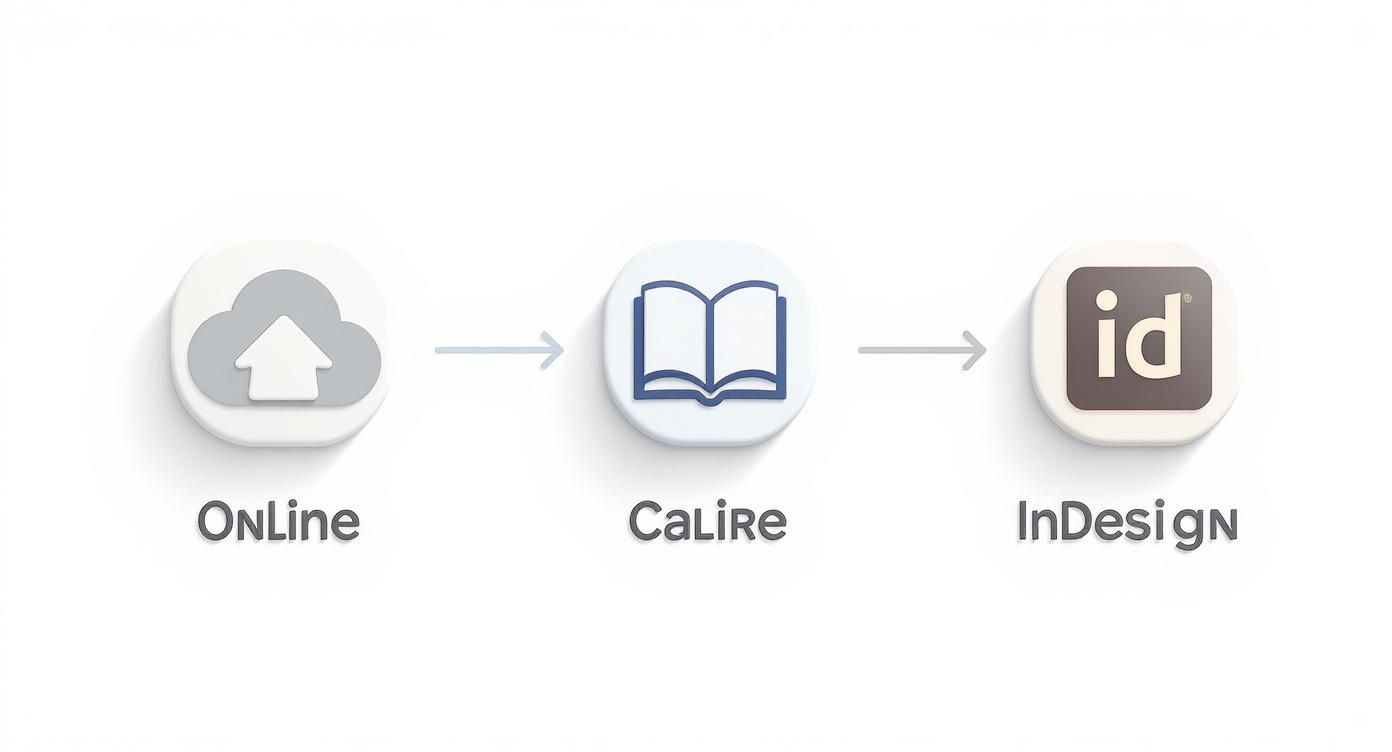
As you can see, the path often moves from simpler tools to more complex, powerful software like Calibre or even InDesign when maximum control is needed.
Fine-Tuning the Look and Feel
The "Look & Feel" tab is where you can make some subtle but important tweaks. The key here is to use a light touch. Readers can change fonts and sizes on their devices, so our goal is consistency, not rigid formatting.
Under the "Text" sub-tab, I always recommend enabling "Smarten punctuation." It's a fantastic feature that automatically changes straight quotes (" ') into the curly, professional-looking “typographer’s quotes” you see in traditionally published books.
Next, jump to the "Layout" sub-tab and find the option for "Remove spacing between paragraphs." Check this box. If you set up your Word document correctly (using first-line indents, not extra paragraph breaks), this setting prevents Calibre from adding ugly, unwanted white space between every single paragraph.
Understanding Heuristic Processing
Finally, let's talk about the "Heuristic Processing" tab. This is Calibre’s powerful but sometimes unpredictable "fix-it" engine. It tries to intelligently detect and repair common formatting messes left over from Word documents.
Honestly, if you've prepared your manuscript cleanly, you shouldn't need this. My advice is to always run your first conversion without it enabled. If the resulting EPUB has weird line breaks or formatting quirks, then come back and run the conversion again with Heuristic Processing turned on. It can be a lifesaver for a messy file, but it's best used as a troubleshooting tool, not a default setting.
With those settings configured, click "OK" in the bottom-right corner. In just a few seconds, Calibre will build your EPUB, ready for the final steps: validation and testing.
So You've Converted Your Manuscript… Now What?
You’ve wrestled with Word, hit the export button, and now you have an EPUB file. It’s tempting to call it a day, but this is where the real pros separate themselves from the amateurs. Just because you have a file doesn't mean you have a book ready for readers.
Think of it this way: you just built a car. Now you need to make sure the engine won't fall out on the highway. This final quality check—validating and testing—is arguably the most critical step before you how to publish an ebook.
Skipping this will almost certainly come back to haunt you in the form of bad reviews from readers who can't open your book or find it riddled with bizarre formatting glitches. Let's make sure that doesn't happen.
The First Hurdle: EPUBCheck Validation
Before you even glance at how your eBook looks, you need to confirm it’s technically sound. The entire industry uses one official tool for this: EPUBCheck. This free utility is the gatekeeper, the gold standard for verifying that your file's underlying code follows the strict rules of the EPUB format.
Major retailers like Apple Books and Kobo won't even let you in the door if your file fails this test. They run it automatically on every upload, and a fail means an instant rejection. No appeals, no second chances.
You have a few ways to run the check:
- The Easy Way (Online): Use a free web-based version like the one from EPUB Validator (pagina.gmbh). Just drag, drop, and get your results in seconds.
- The Pro Way (Desktop App): If you're doing this often, download the application to run it directly on your machine.
- The Integrated Way: Power-user tools like Sigil and Calibre have EPUBCheck built right in, so you can validate as you make tweaks.
Getting a "no errors" message from EPUBCheck means your file is structurally solid and won't be automatically rejected by retailers.
"A file that fails EPUBCheck is not a valid EPUB. It's a collection of files that might look like an eBook on some devices but is fundamentally broken and will cause problems for readers and retailers alike."
Beyond the Code: Real-World Device Testing
Here’s a hard-earned lesson: a "valid" EPUB is not the same as a good EPUB. The file can pass the technical inspection with flying colors and still look like a mess on an actual device. That's why you have to see it with your own eyes, on the same kinds of screens your readers will be using.
Never, ever trust a single app or device for your testing. An image that’s perfect on a 10-inch iPad might be a pixelated smudge on a 6-inch Kindle Paperwhite. The only way to know is to check.
You don't need to buy a dozen devices. A few key, free applications will cover your bases:
- Thorium Reader: This is an excellent desktop reader for Windows, Mac, and Linux. It's very strict about standards, so it gives you a pure, accurate preview of how your EPUB should look.
- Calibre's E-book Viewer: The viewer built into Calibre is perfect for a quick-and-dirty check right after you convert. It's great for spotting glaring layout problems immediately.
- Kindle Previewer: This is non-negotiable if you plan to sell on Amazon. It shows you precisely how Amazon will mangle—ahem, convert—your EPUB for its ecosystem of Kindle devices and apps.
Your Pre-Flight Checklist
As you open your file in these different viewers, you need to be methodical. Go through the book like a proofreader looking for typos, but instead, you're hunting for formatting errors.
Here's what I always look for:
- The Cover: Is it there? Does it fill the screen properly?
- Table of Contents: Click every single link. Do they all go to the right chapter?
- Internal Links: Test any footnotes, endnotes, or cross-references you've added. A dead link is a huge red flag for readers.
- Images: Are they clear? Are they sized correctly, or are they getting squished or blown up?
- Text Formatting: Look closely at your chapter titles, subheadings, and any text you made bold or italic. Is it all showing up as intended?
- Spacing and Paragraphs: Are there weird, massive gaps between paragraphs? Is the first-line indent consistent?
Finding and fixing these problems now is the difference between a professional launch and a wave of one-star reviews. This is what it takes to publish a book you can be proud of.
Wrestling with Word to EPUB Conversion: Your Questions Answered
Even when you follow all the steps, turning a Word document into a polished EPUB can feel like a bit of a dark art. Things can—and often do—go sideways. Let's walk through some of the most common snags I see authors hit and how to untangle them.
A question I get all the time is, "What happened to my beautiful fonts?" You spent hours picking the perfect font in Word, but it vanishes in the EPUB. This isn't a bug; it's a feature of e-readers. They are designed to let the reader control the font for a comfortable experience.
My best advice? Don't fight it. Stick to standard, web-safe fonts like Times New Roman or Arial in your Word document. This ensures your manuscript converts cleanly, and you can let the e-reader do its job.
Why Does My Cover Image Look So Bad?
Another classic problem: a blurry, pixelated cover. Your book cover is your single most important marketing tool, and a fuzzy image just screams amateur. This is almost always a resolution issue.
You can't just grab a small thumbnail and expect it to work. For a cover that looks sharp on everything from a phone to a high-res tablet, you need to meet some specific specs:
- Format: Stick with JPG. It’s the universal standard.
- Resolution: Your image needs to be at least 1600 pixels wide by 2560 pixels tall. This is non-negotiable for modern devices.
- Color Profile: Always use RGB, which is for screens. CMYK is for print and will cause color issues.
Getting the cover right is critical. It’s the first impression your book makes, so make it a good one.
The golden rule of a great EPUB is adaptability. If you try to force a rigid, print-like layout, it will inevitably break on some devices. Your goal should always be a clean, flexible structure, not precise visual control.
Can I Use Footnotes or Endnotes?
Absolutely, but this is where a simple automated conversion often falls apart. If you just export a Word file with footnotes, you’ll likely end up with broken links and a mess of disconnected text. Readers will have no way to get from the note reference to the note itself.
To make them work properly, footnotes need to be functional hyperlinks. Some tools, like Calibre, do a decent job of automating this if your notes are set up perfectly in Word.
For a truly professional result, though, you might need to roll up your sleeves and edit the EPUB's code directly with a tool like Sigil. This lets you build the necessary two-way links—from the text to the note, and a return link from the note back to the text—creating that seamless experience readers expect.
At BarkerBooks, we live and breathe these technical details so you can stay focused on your writing. From flawless formatting to global distribution, we’ll turn your manuscript into a professional book the world is waiting for. Explore our publishing packages today.