
You open the edited manuscript expecting a few commas and find a forest of strikethroughs, bubbles, arrows, underlines, and symbols in the margins. Your first impulse may be to accept everything, reject everything, or close the file and pretend the edits aren't there. Don't. Manuscript editing marks are instructions, not verdicts, and once you learn the small working vocabulary behind them, a marked-up page becomes a conversation you can manage.
The system has a long history, but you don't need to become a print-shop historian to use it. You need to recognize what an editor is asking, decide whether the change preserves your meaning and voice, and leave a clear record of your response. This guide connects traditional proofreader's marks with Word's Track Changes and Google Docs' Suggesting mode, so you can work confidently whether the edits arrive on paper, in a PDF, or inside a shared document.
Opening a Marked-Up Manuscript Without Panic
The first time you open a heavily edited document, don't read every bubble. Start by changing the conditions of the review. Save the original file under a new name, make sure markup is visible, and give yourself a quiet pass before deciding whether any individual change is right.
Use this grounding sequence:
- Open the file without editing it. Scroll through several pages so you can see whether the document uses Track Changes, comments, traditional symbols, or a mixture.
- Breathe before judging. Red ink measures the number of editorial decisions on the page, not the quality of your writing or your ability as an author.
- Sort marks into three categories. An insertion adds something, a deletion removes something, and a query asks you to make a decision.
A caret under a sentence, a strikethrough through a phrase, and a comment bubble may look unrelated, but they perform variations of the same job. The editor is asking the page to change, asking you to approve a proposed change, or asking you to explain something that isn't clear.
Practical rule: Treat every edit as a question that deserves an answer, not as an order that must be obeyed.
Your possible answers are simple: yes, no, or let's discuss. Accept a correction when it fixes an error or improves clarity without changing your intent. Reject it when it introduces a factual problem, damages your voice, or misunderstands the scene. Query it when the choice depends on context, house style, or a meaning only you can confirm.
If Word's reviewing display makes the page difficult to read, use this guide to removing the markup area in Word after you've preserved the original. Hiding markup can help you read the clean text, but don't use that view to avoid making decisions. A clean copy shows the result. The marked copy shows how you got there.
How Manuscript Editing Marks Evolved Over Centuries
Editors didn't invent manuscript editing marks for software. The notation grew from a practical need to connect a correction with the exact place where it belonged. The University of Saskatchewan history of manuscript corrections notes that Latin manuscripts copied from the 11th century onward used paired signs to connect a marginal correction to its insertion point in the text. A reader could write the replacement outside the line without losing its intended location.
By the 16th century, proofreading marks had entered the print workflow as movable type became established. Printers needed compact signals for additions, deletions, spacing, and rearrangement because a compositor had to translate an editor's instruction into physical changes to type. In the 17th century, specialized in-house proofreaders emerged in continental Europe, and English printers adopted the role in the mid-18th century, according to the same historical account.
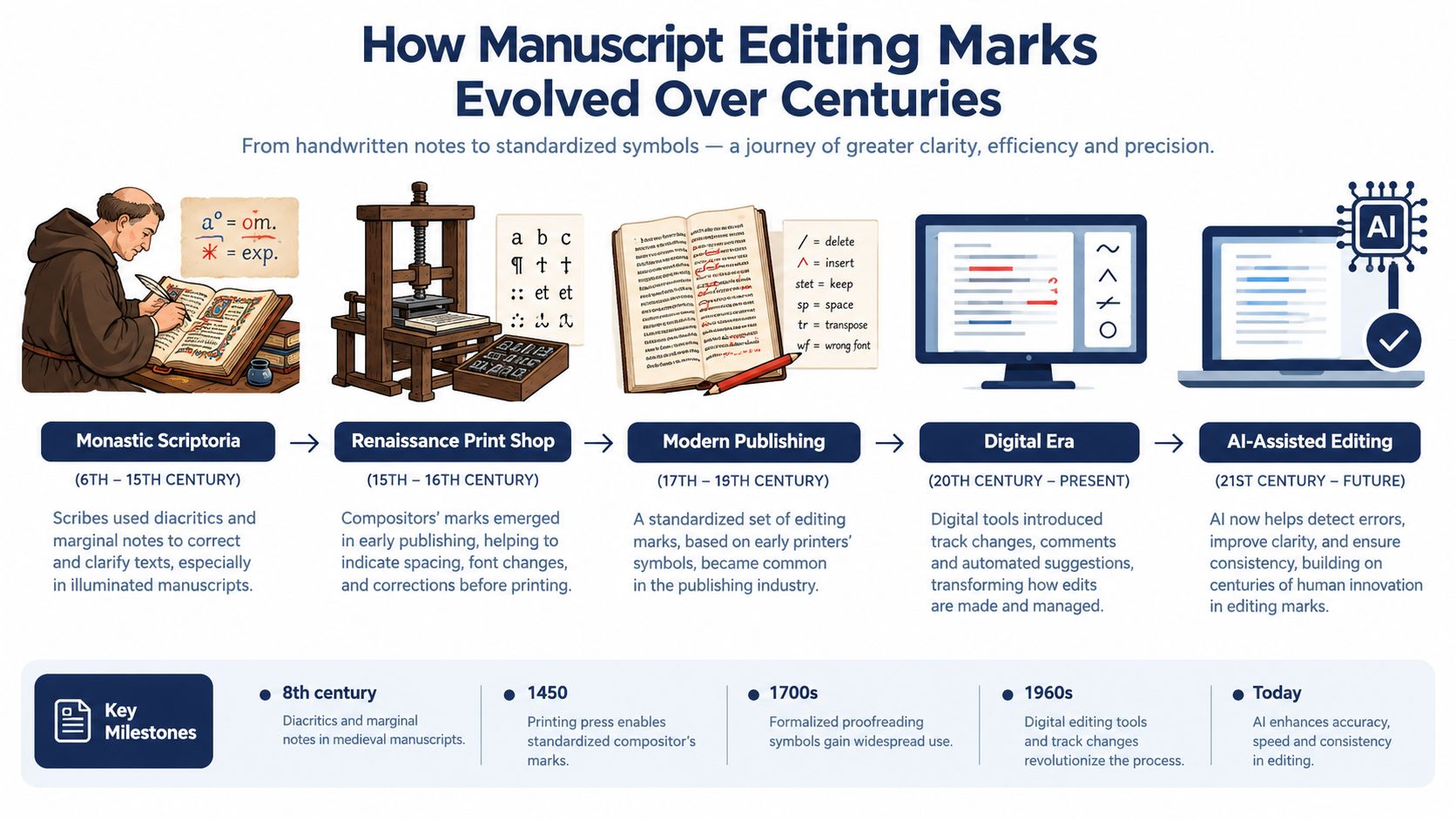
The symbols survived because they solved recurring operational problems. A caret tells someone where to insert text. A deletion mark identifies material to remove. A transpose mark shows that the words should change places. Those instructions remain useful even though the worker carrying them out now clicks in a document instead of moving pieces of metal type.
From shared symbols to software commands
Standardization accelerated during the 19th and 20th centuries, when style authorities and publishing guides helped unify the marks used by editors and proofreaders. A modern overview of proofreading symbols connects that standardization with the systems still recognized today.
Digital tools didn't erase the older grammar. Track Changes records an insertion or deletion directly in the file, while comments carry the questions once written in a margin. The medium changed, but the editorial logic remained: identify the location, state the proposed action, and let the responsible person confirm the result.
The timeline becomes easier to remember when you connect each era to its problem. Manuscript readers needed a location system, printers needed concise production instructions, and digital editors needed reversible revisions. Each generation kept the useful part of the previous one.
The historical relationship is also visualized in this short video, which can help you see why familiar marks still appear in publishing education and proof stages.
Two Systems Side by Side
Authors usually encounter two related notation systems. Traditional proofreader's marks are drawn on paper proofs, laid-out pages, and sometimes PDFs. Digital tracked changes stores proposed revisions inside a document so the author can review, accept, reject, or revise them.
The distinction is easiest to understand this way: a proofreader's mark describes what should happen, while Track Changes records what someone proposed doing. A caret on paper points to an insertion location. A tracked insertion displays the new words in the document. A marginal query asks for a decision. A Word or Google Docs comment stores that question beside the relevant text.
Neither system is more intelligent. They serve different production conditions.
| Feature | Print Proofreader's Marks | Digital Tracked Changes |
|---|---|---|
| Location | Text line plus margin or symbol | Text selection, revision balloon, or comment |
| Insertion | Caret with added words | New text displayed as an insertion |
| Deletion | Strikeout or deletion mark | Removed text displayed or hidden according to the view |
| Question | Marginal note or question mark | Comment thread |
| Reversal | Manual restoration or new correction | Reject or revise the change |
| Final review | Clean proof or corrected page | Clean version after accepting or resolving revisions |
When each system appears
Copyediting commonly takes place in Word or another digital editor, where the file can preserve the original and proposed wording. A design or production team may later proofread a PDF or printed page, because the final layout can introduce problems that weren't visible in the manuscript, such as awkward line breaks, missing text, or misplaced captions.
The Reedsy reference to proofreading marks describes a largely shared baseline that includes the caret, deletion, transpose, and pilcrow, while also warning that house conventions can vary. That's why you should learn the common symbols but confirm the publisher's instructions before marking a physical proof.
If you receive a Word file, turn on the Reviewing tools and identify whether changes are shown inline or in balloons. If you receive paper, look for the mark in the text and its explanation in the margin. The same editorial action may look different, but its purpose should remain identifiable.
Insertion Deletion and Spacing Marks
Most pages become manageable once you recognize the marks that control adding, removing, joining, and separating text. These are the instructions you'll encounter most often in traditional markup.
The caret, or ^, marks an insertion point. An editor may write the missing material above the line or in the margin, then place the caret exactly where it belongs. A deletion may appear as a line through the unwanted text, a handwritten “delete” or “dele,” or a conventional delete symbol. A close-up mark joins text that has been separated unnecessarily, while # tells the compositor to insert a space.
| Symbol | Name | Meaning | Example |
|---|---|---|---|
| ^ | Caret | Insert text at this location | Original: “She opened door.” Mark: ^ the Final: “She opened the door.” |
| Strikethrough | Delete the marked text | Original: “He quietly whispered.” Mark: delete “quietly” Final: “He whispered.” | |
| dele or handwritten delete mark | Delete | Remove a character, word, or passage | Original: “The the bell rang.” Mark: delete the second “the” Final: “The bell rang.” |
| close-up mark | Close up | Join separated characters or words | Original: “some thing” Mark: close up Final: “something” |
| # | Insert space | Add a space | Original: “inthe room” Mark: # between “in” and “the” Final: “in the room” |
| tr or transpose mark | Transpose | Reverse the order of text | Original: “only she” Mark: transpose Final: “she only” |
| ⁄ | Insert slash | Add a slash | Original: “and or” Mark: insert / Final: “and/or” |
| ’ | Insert apostrophe | Add an apostrophe | Original: “dont” Mark: insert apostrophe Final: “don't” |
The difference between close up and delete causes frequent confusion. Close up doesn't necessarily remove a letter. It removes the unwanted gap. In “note book,” the instruction joins the words to make “notebook.” Delete, by contrast, removes the marked material itself. If an editor strikes out the second “the” in “the the bell,” that word disappears rather than moving closer to its neighbor.
Reading the mark in context
A handwritten correction often has two parts: the signal in the line and the replacement in the margin. Don't interpret the symbol alone. Locate the corresponding note, then read the entire sentence after applying the proposed change.
The same discipline helps when you use digital tools alongside a traditional reference. Writers comparing editing, writing, and productivity software can browse Narrareach freelance tools for broader workflow ideas, but the editorial decision still belongs to the manuscript. A tool can display a revision. It can't decide whether the new wording sounds like you.
When a mark seems ambiguous, copy the original sentence into a separate note, apply the proposed correction there, and compare both versions aloud. Hearing the sentence often reveals whether the editor fixed a mechanical error or accidentally changed the rhythm and meaning.
Punctuation Capitalization and Formatting Marks
Punctuation marks tell the typesetter or author what small signal the sentence needs. A circled period requests a full stop. A circled comma requests a comma. A circled “stet” means let the original text stand, even if it was previously marked for deletion.
Consider these examples:
| Mark | Instruction | Typed Example | Corrected Result |
|---|---|---|---|
| Circled period | Insert a period | “The meeting ended abruptly” | “The meeting ended abruptly.” |
| Circled comma | Insert a comma | “After dinner we walked” | “After dinner, we walked.” |
| Stet | Restore the marked text | “She was |
“She was afraid.” |
| Cap with three underlines | Capitalize | “the Atlantic” | “the Atlantic” becomes “the Atlantic” only if the style decision supports it, while “the river” can become “the River” in a proper name |
| lc | Change to lowercase | “The Morning Train” | “The morning train” |
| Italic underline | Set in italics | “The Odyssey” | The Odyssey |
| Three underlines | Set in bold | “Important” | Important |
| Wavy underline | Set in bold italics | “Warning” | Warning |
| Transpose mark | Reverse order | “a red small box” | “a small red box” |
| Apostrophe mark | Insert apostrophe | “cant” | “can't” |
Capitalization marks can be especially easy to misread because the correction may depend on whether a word is a proper name, a heading, or part of a title. The label sm cap requests small capitals, a treatment often used for names or headings in particular design systems. It isn't the same as typing every letter in full capitals.
Editors also use an underline beneath a word to request italics in traditional markup. Fiction authors may see an apostrophe instruction beside dialogue, especially when a contraction or possessive has been typed incorrectly. The correction isn't merely cosmetic. “The writers room” and “the writer's room” carry different meanings.
For a practical explanation of broader editorial work, see what copy editing includes. Punctuation, spelling, consistency, and formatting decisions often overlap, but you should still distinguish a required correction from a stylistic preference.
Digital interfaces translate many of these signals into toolbar actions. Word's formatting controls and Google Docs' text styling buttons perform the same visible result as an italic, bold, or capitalization instruction on a proof. If you're preparing title text or subject lines, this guide to email subject line capitalization can also help you separate capitalization rules from the visual emphasis requested by a markup symbol.
Paragraph and Structural Marks
Some marks change the shape and organization of a page rather than its wording. The pilcrow, ¶, signals a paragraph break. An inverted pilcrow or “no paragraph” instruction tells the typesetter to run the text together instead.
Suppose a manuscript reads:
“The door opened. Mara stepped inside.”
If the editor places a pilcrow between the sentences, the final version becomes:
“The door opened.
Mara stepped inside.”
If the text already breaks into two paragraphs but the editor circles the break and adds “no ¶,” the result is one continuous paragraph. This distinction matters in fiction, where a new paragraph can signal a new speaker, a change in emphasis, or a shift in narrative movement.
Structure in practical manuscripts
A bracket or vertical mark in the margin may request an indent. In a novel, that can mean setting the first line of a new paragraph inward or formatting a block of dialogue according to the publisher's style. A block quotation in an academic manuscript may receive an instruction to indent the entire passage, while a chapter opening may be marked to start flush left rather than with a first-line indent.
Alignment instructions are equally direct:
- Flush left: Align the marked material with the left margin.
- Flush right: Align it with the right margin.
- Center: Place the heading or element in the middle of the measure.
- Indent: Move the text inward from the normal margin.
A manuscript might contain a section heading inserted above a paragraph, followed by a pilcrow and an instruction to apply a heading style. An editor may also move a figure caption so that it sits with the correct figure. These changes affect navigation and production, not just sentence polish.
In Word, pressing Enter creates a paragraph mark, applying an indent changes paragraph settings, and assigning a Heading style supplies a structural instruction digitally. In other words, the software action isn't unrelated to the old proof mark. It is the same production request expressed through a control panel.
Print Marks Compared to Digital Tracked Changes
The traditional symbol set still helps because it gives names to common editorial actions. The digital equivalent may look cleaner, but the underlying decision remains familiar.
| Editorial Action | Print Proofreader's Mark | Word Tracked Changes | Google Docs Suggestion Mode |
|---|---|---|---|
| Insert a word | Caret with added text | Inserted text appears as a revision | Suggested text appears in the document |
| Delete a word | Strikeout or dele | Deleted text appears as removed markup | Suggested deletion appears for approval |
| Transpose words | Transpose mark | Delete and insert, or a comment explaining order | Suggested replacement or comment |
| Capitalize | Cap instruction and underlines | Replacement letter shown as a revision | Suggested capitalization change |
| Insert period | Circled period | Added punctuation appears as an insertion | Suggested punctuation appears in context |
| Close up | Close-up mark | Delete the space | Suggested deletion of the space |
| Stet | Circled “stet” | Reject the deletion or restore the text | Reject the deletion or restore the text |
| Ask a question | Marginal query or question mark | Comment | Comment thread |
The caret, close-up loop, and marginal query have straightforward digital replacements. Word shows the insertion or deletion directly, and both Word and Google Docs can attach a comment to the relevant phrase. A traditional “stet” is less likely to appear as a dedicated button. In a digital file, the practical equivalent is usually rejecting a deletion or restoring text manually.
Some print instructions also need typed clarification. A request involving a dash, special spacing, or a house-specific formatting rule may be clearer as a comment than as a handwritten symbol. The same applies when the editor's intent can't be represented cleanly by a single revision.
What digital systems add
Print markup usually carries no built-in author color, timestamp, or discussion history. Word balloons and Google Docs suggestion threads can show who proposed a change and let participants reply. Those features improve accountability, but they can also make a manuscript look busier than a paper proof.
Don't confuse visibility with importance. A long comment thread may concern one small wording choice, while a silent tracked deletion may alter the meaning of an entire sentence. Read the changed text, then read the comment, rather than judging the edit by the size or color of its display.
How Authors Should Respond to Edits
Resist Accept All on the first pass. A professional review preserves your authority over meaning, voice, facts, and intentional variation, even when an editor has made many sound corrections.
Use a five-step review loop:
- Read once without touching anything. Notice the editor's overall approach. Are the comments mostly mechanical, or do they question clarity, structure, and consistency?
- Work from the beginning to the end. Accept clear corrections while the surrounding context is fresh.
- Reject changes that damage intent. If an editor changes a sentence's meaning, restore it and leave a short explanation.
- Query borderline decisions. Turn uncertainty into a comment instead of accepting or rejecting the change without review.
- Create a clean copy and archive the marked copy. Keep the editor's version intact, then save a new file after each completed pass.
In Word, select a revision or open its comment to compare the original wording with the proposed wording. The review controls let you accept or reject a specific change without committing the rest of the file. In Google Docs, Suggesting mode serves a similar purpose. It lets the author or editor propose wording while leaving the existing text available for comparison.
Answering without losing your voice
An editor may change “He walked quickly across the room” to “He hurried across the room.” Both sentences can be grammatical, but the second may imply urgency that the scene doesn't support. Rejecting it isn't stubbornness if the distinction matters. Write a brief comment such as, “I need the movement to feel controlled rather than urgent.”
For factual disagreements, respond with evidence or a source, not only preference. For style disagreements, explain the intended effect. Group related questions in one response when possible, so the editor can understand the pattern rather than receiving a string of disconnected objections.
If you need hands-on support for a complete review, BarkerBooks manuscript editing services can address developmental editing, line editing, copyediting, and proofreading as distinct stages. Whichever route you choose, keep the decision trail. The clean file is for reading and submission. The marked file is your record of the editorial reasoning.
The Core Marks That Actually Matter Today
You don't need to memorize every symbol in an old proofreading chart. Modern publishing guidance treats the familiar marks as a shared baseline, but professional copyeditors often work directly in Word with Track Changes and comments for 4–6 weeks, as described by Ohio State University Press's author FAQ. The practical skill is recognizing the action, not reciting a museum of glyphs.
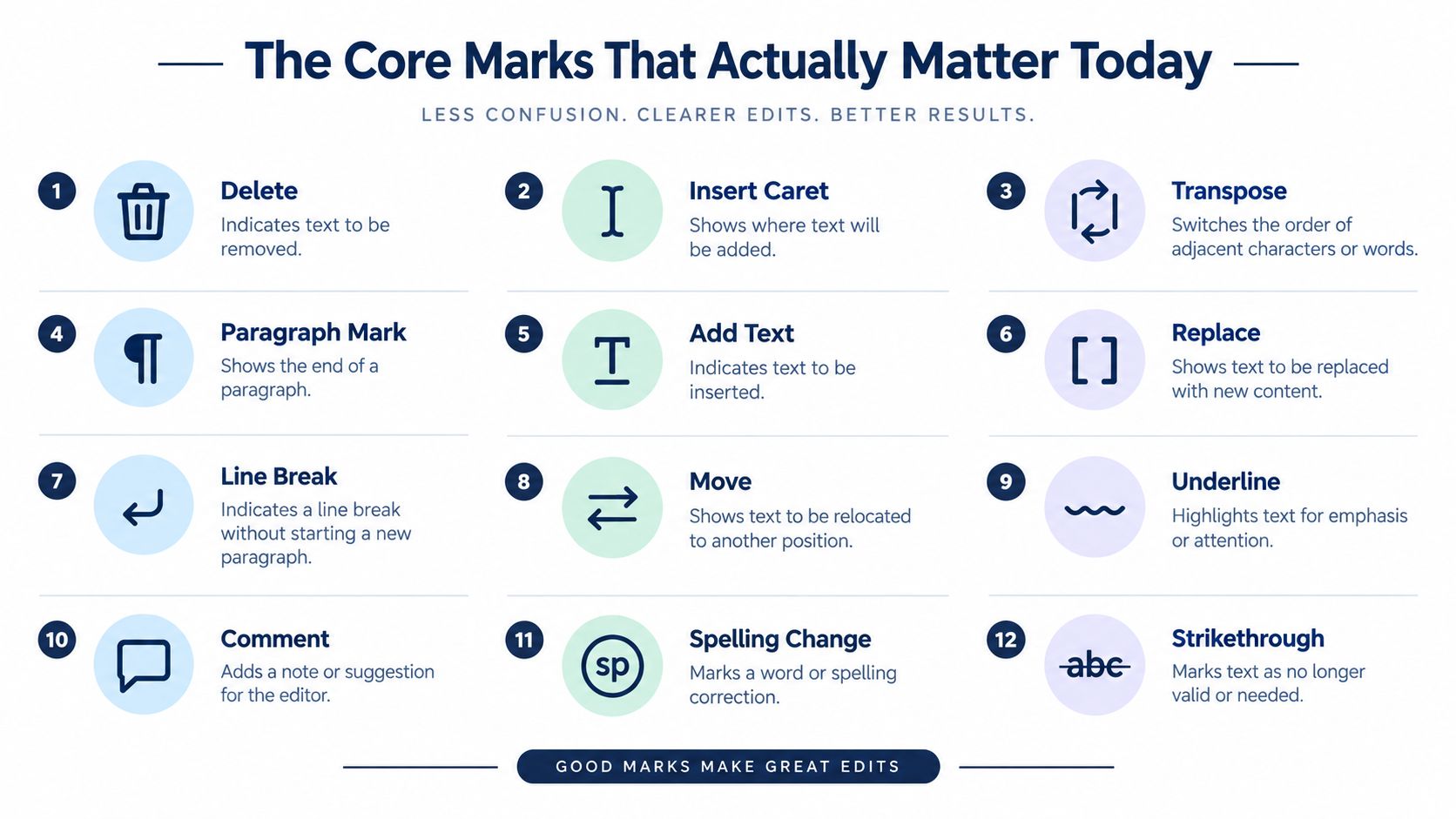
Focus on this working set:
- Caret: Insert text. “She opened ^ door” becomes “She opened the door.”
- Strikethrough: Delete text. “He
quicklyleft” becomes “He left.” - Close up: Remove an unnecessary space. “every thing” becomes “everything.”
- Transpose: Reverse order. “a blue small room” becomes “a small blue room.”
- Stet: Let the marked text stand. Restore wording previously selected for deletion.
- Comma insertion: Add a comma where the sentence needs a pause or separation.
- Period insertion: Add a full stop to close a sentence.
- Cap: Change a lowercase letter or word to uppercase.
- Lowercase: Change an unnecessary capital to lowercase.
- Query mark: Ask the author to clarify, verify, or choose.
These marks cover the decisions that appear repeatedly in ordinary manuscript review. Less common symbols, such as specialized spacing or type-treatment instructions, can usually be resolved through context or a typed comment. When in doubt, locate the affected sentence, identify the requested action, and ask a precise question.
Quick Reference Glossary of Manuscript Editing Marks
Use this glossary as a working desk reference. The examples show the intended result, but house style can change the final treatment, especially for headings, quotations, capitalization, and typography.
- Apostrophe: Add an apostrophe.
dontbecomesdon’t. - Boldface: Set the selected text in bold.
Warningbecomes Warning. - Caret: Insert text.
She opened ^ doorbecomesShe opened the door. - Center: Align the element in the middle. A heading moves from the left margin to the center.
- Close up: Join separated text.
some thingbecomessomething. - Comma: Insert a comma.
After dinner we leftbecomesAfter dinner, we left. - Delete or dele: Remove marked material.
the the doorbecomesthe door. - Flush left: Align text with the left margin. A caption moves back to the main left alignment.
- Flush right: Align text with the right margin. A running element moves to the right edge.
- Indent: Move text inward from the normal margin. A block quotation receives an indented setting.
- Italicize: Set text in italics.
The Odysseybecomes The Odyssey. - Let stand or stet: Restore text marked for removal.
~~not~~returns tonot. - Lowercase or lc: Change a capital to lowercase.
The MorningbecomesThe morning. - Paragraph or pilcrow: Insert a paragraph break. Two continuous sentences become separate paragraphs.
- Period: Add a full stop.
The door closedbecomesThe door closed. - Query: Ask for clarification or verification.
The ship arrived in May?signals a question for the author. - Quotation marks: Add or correct quotation marks.
She said hellobecomesShe said, “Hello.” - Small capitals: Apply small-cap styling where the house style requires it. A name or heading receives smaller uppercase letterforms.
- Space or #: Insert a missing space.
inthebecomesin the. - Spell out: Replace an abbreviation or numeral with words.
3 daysbecomesthree dayswhen the style requires it. - Transpose: Reverse the order of nearby text.
only hebecomeshe only. - Underline: In traditional markup, an underline may request italics or a specified emphasis treatment. Confirm the house style.
- Bold italics: Use the designated wavy or combined emphasis instruction.
Warningbecomes Warning. - Hyphen: Add or adjust a hyphen.
well known authormay becomewell-known authorwhen the phrase functions adjectivally.
Keep this list beside the manuscript during your next review. Save a new clean file when you've finished, retain the marked version for reference, and ask the editor about any symbol that remains unclear. BarkerBooks supports authors with manuscript preparation, editorial review, formatting, and publishing workflows, so visit BarkerBooks to discuss the level of help your manuscript needs and prepare it for professional publication.