
When you hear "Kindle ebook format," it's easy to think of a single file type. But the reality is a bit more complex. It's not one format, but a whole family of proprietary formats that Amazon created just for its Kindle e-readers and apps.
The most common ones you'll run into are AZW, AZW3, and KFX. Each one is a little different, with its own quirks and features. Think of it as a special language that only Kindle devices can truly understand.
What Is the Kindle Ebook Format Family?
To really get a handle on Kindle formats, you have to stop thinking about a single file and start picturing Amazon’s "walled garden." While most of the digital publishing world settled on the universal EPUB format—the ebook equivalent of an MP3 for music—Amazon went its own way. They built their own private ecosystem to deliver a reading experience they could control and perfect.
This closed system is precisely what allows Amazon to bake in features that open-source formats just can't easily support. These exclusive bells and whistles are a huge part of the Kindle’s appeal and why it dominates the market.
So, what do you get inside this walled garden?
- Enhanced Typesetting: This is a big one. Amazon's formats allow for much more sophisticated text justification, hyphenation, and word spacing. The result is a clean, polished page that looks more like a printed book.
- Custom Fonts: Amazon developed its own fonts, like Bookerly, specifically for reading on a screen. It’s designed to be easier on the eyes, which makes a huge difference during a long reading session.
- Digital Rights Management (DRM): This is the technology that locks an ebook to a specific user's account. For authors and publishers, it's a crucial tool to prevent piracy and protect their work from being shared illegally.
Why Amazon Built a Private Ecosystem
Amazon's decision to create its own format family was a brilliant strategic move. By controlling everything from the file itself to the device it's read on, they can guarantee a smooth, consistent experience for every reader. It also lets them push out updates and new features whenever they want.
And it clearly worked. Today, Amazon commands a staggering 72% of the e-reader market. That kind of market share makes its format the unofficial standard for millions of people.
This image of a modern Kindle Paperwhite shows exactly where these formats shine.
That crisp text and seamless interface don't happen by accident—it's the direct result of Amazon's tight integration of hardware and software.
To give you a quick cheat sheet, here’s a breakdown of the formats we've been talking about.
Quick Guide to Kindle Ebook Formats
This table sums up the main Kindle formats you're likely to encounter, what they're called, and what you need to know about them.
| Format | Common Name | Key Feature | Current Status |
|---|---|---|---|
| AZW | "MOBI" | The original Kindle format. | Legacy. Replaced by newer formats. |
| AZW3 | "Kindle Format 8" | Introduced better fonts and layout. | The most common modern format. |
| KFX | "Kindle Format 10" | Advanced typesetting and typography. | The latest format, used for newer books. |
Knowing these differences helps you understand why your ebook might look a certain way on different devices.
Ultimately, the Kindle format family is the engine that powers the entire Kindle experience. Getting a grip on these core concepts is the first step toward mastering the art of digital publishing. For a deeper dive into the principles of preparing a manuscript for any digital platform, check out our guide on what is book formatting. It’s the perfect foundation for everything that comes next.
The Journey from MOBI to KFX: A Kindle Format Evolution
To really get what a "Kindle format" is today, you have to appreciate where it came from. Amazon didn’t just invent a single format and call it a day; they’ve been tweaking and overhauling their technology for years. This journey from a clunky, basic file to a sophisticated reading experience has three major milestones: MOBI, AZW3, and KFX.
Think of it like the history of video games. MOBI is like an old Atari game—groundbreaking for its time, but incredibly basic. AZW3 is the Super Nintendo era, introducing a burst of color and much more sophisticated design. And KFX? That's today's 4K gaming experience—hyper-realistic, smooth, and packed with features you never knew you needed.
Each step forward gave readers a better experience and authors more creative control.
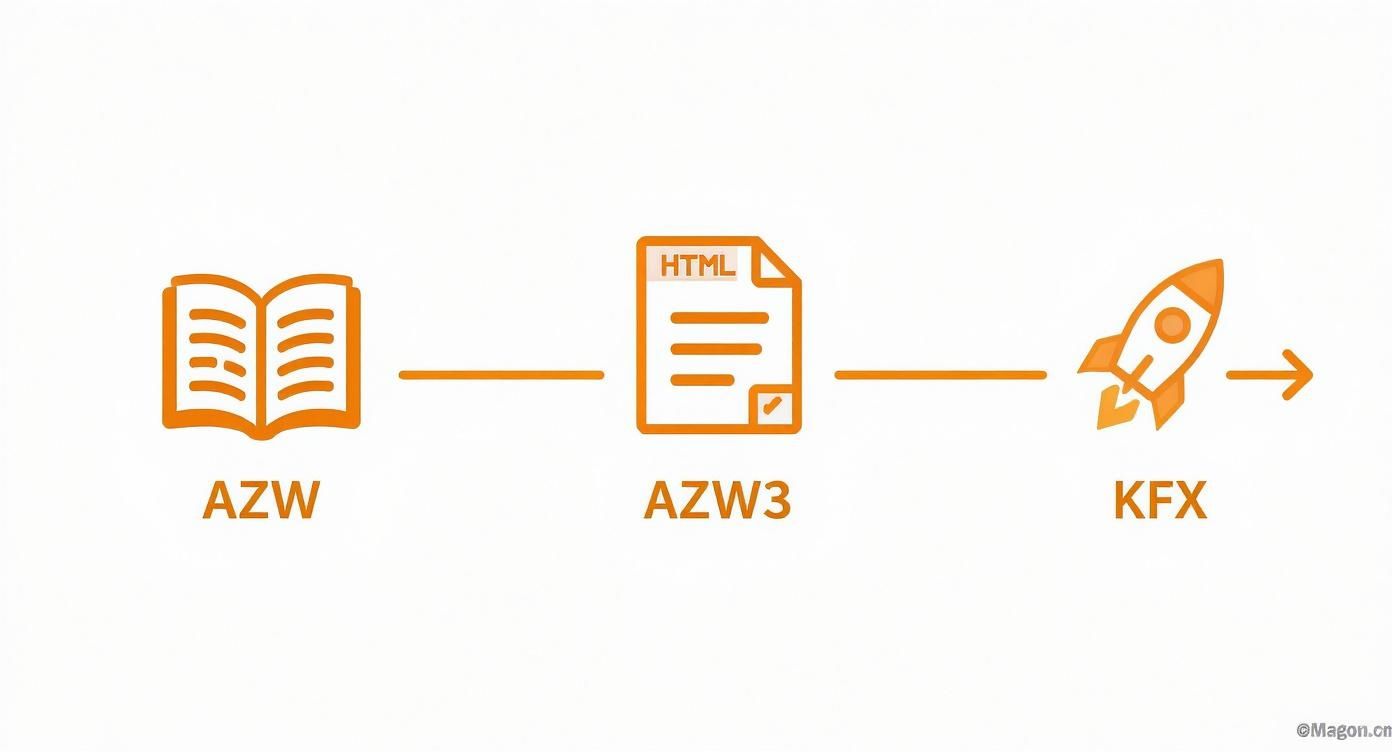
As you can see, the road from the original AZW to the high-tech KFX shows Amazon's obsession with making a digital page feel as good—or even better—than a printed one.
MOBI: The Old Guard
The whole story starts with MOBI. Back in 2007, just before launching the first Kindle, Amazon bought a French company called Mobipocket. Mobipocket had already created the MOBI format, and Amazon simply adapted it for their new device, creating AZW. At its core, AZW was just a MOBI file with Amazon's own digital rights management (DRM) slapped on.
For its time, it worked. MOBI could handle reflowable text, basic formatting like bold and italics, and bookmarks. The problem was, it was built on ancient, clunky web standards.
- Zero Design Flexibility: Forget about embedding your own fonts or creating unique chapter headings. Authors were stuck with basic, often inconsistent formatting.
- Clumsy Image Handling: High-resolution images were a no-go, and getting text to wrap nicely around a picture was a constant battle.
- Outdated Tech: It couldn't handle modern HTML5 or CSS3, the very languages that make today's digital content look so good.
As a result, Amazon officially pulled the plug on MOBI for new reflowable books in August 2022. You can’t upload them anymore, pushing everyone toward the newer, better formats.
AZW3: The Jump to Modern Design
The game changed in 2011 with the launch of the Kindle Fire tablet. Amazon rolled out Kindle Format 8 (KF8), which you’ll see as an AZW3 file. This wasn't just an update; it was a complete overhaul that left MOBI in the dust.
The big breakthrough was that AZW3 was built from the ground up using HTML5 and CSS3—the same technologies that power modern websites. Suddenly, authors and designers had a whole new toolbox to play with.
You can think of an AZW3 file as a tiny, self-contained website. It supports complex layouts, custom fonts, and crisp vector graphics, giving authors the power to make their ebooks look truly professional.
This shift was huge. It meant that digital books could finally have drop caps, styled blockquotes, and beautiful chapter headings that mirrored their print counterparts. AZW3 quickly became the new gold standard for Kindle ebooks, and it's still a workhorse format today.
KFX: The Ultimate Reading Experience
The newest and most advanced format is KFX, which Amazon quietly introduced around 2015. If AZW3 was about improving the ebook's design, KFX is all about perfecting the reading experience. It’s less about the design tools for the author and more about how the words actually appear on the reader's screen.
KFX brought a few key innovations that make reading a dream:
- Enhanced Typesetting Engine: This is the secret sauce. The engine intelligently adjusts word spacing, hyphenates words properly, and justifies text more beautifully. The result is a page that looks clean and balanced, just like a professionally typeset print book, which makes for easier reading.
- Bookerly Font: Amazon created its own font, Bookerly, designed specifically for reading on screens. It's incredibly easy on the eyes, especially on E Ink displays.
- Smarter Compression: KFX files are smaller than their predecessors. For readers, this means faster downloads and more books stored on their device.
Today, KFX is the top-tier format that Amazon delivers to all its modern Kindle devices and apps. It’s the culmination of everything they’ve learned. As an author, your job is to give Kindle Direct Publishing (KDP) a source file so clean and well-structured that it can be flawlessly converted into this beautiful format.
EPUB vs. Kindle: The Great Ebook Format Divide
If you’re just getting into self-publishing, you’ll quickly hit a wall of confusion: the file formats. Specifically, the battle between EPUB and the various Kindle formats. This isn’t just a bit of technical trivia; understanding this split is fundamental to how you’ll create and sell your ebook. It’s easily the most common stumbling block for new authors.
Think of EPUB (Electronic Publication) as the MP3 of the book world. It's an open, universal standard. Just about every major ebook store on the planet—Apple Books, Barnes & Noble, Kobo, you name it—uses EPUB. It’s the industry’s default language.
So, if EPUB is the universal standard, why doesn't the biggest ebook retailer on Earth just use it?
Welcome to Amazon's Walled Garden
Years ago, Amazon made a calculated business decision to build its own, separate ecosystem. Kindle e-readers and the Kindle app simply cannot open an EPUB file. This isn't a mistake or an oversight—it's completely intentional.
It’s like trying to play an Xbox game on a PlayStation. The disc looks about the same, but the technology inside is fundamentally incompatible. Amazon’s formats (like AZW3 and KFX) are the "Xbox games" in this scenario, while EPUB is the "PlayStation game."
This "walled garden" strategy gives Amazon total control. It allows them to:
- Dictate the user experience: By owning the entire process from the file you upload to what readers see on screen, Amazon ensures everything just works on their devices.
- Roll out exclusive features: Things like the enhanced typesetting engine, custom fonts like Bookerly, and the seamless Whispersync technology are all much easier to build and maintain within a closed loop.
- Integrate their own DRM: Amazon's Digital Rights Management (DRM) is baked right into its proprietary formats, a major selling point for big publishers concerned about piracy.
This deliberate separation means you can’t just create one file and send it everywhere. You have to play by Amazon's rules.
How This Affects Your Workflow as an Author
Now for the good news: this format war doesn't have to make your life difficult. While Kindle devices won't read an EPUB, Amazon's Kindle Direct Publishing (KDP) platform is smart enough to do the heavy lifting for you. You don't need to learn how to create obscure AZW3 files from scratch.
Your job is simply to give KDP a perfect source file. It will handle the rest.
The most important thing to remember is this: you prepare your book as either a flawless EPUB or a meticulously formatted DOCX file. When you upload that file, Amazon's powerful conversion engine takes over, automatically turning it into the modern Kindle formats the store requires.
This process is remarkably smooth. KDP’s system is excellent at taking a clean source file and producing a beautiful, functional ebook that looks fantastic on everything from an old-school Kindle Paperwhite to the latest Fire tablet.
Choosing the Right Source File
So, which source file should you give Amazon? While KDP accepts several types, including DOCX from Microsoft Word, nearly every professional in the industry will tell you to upload an EPUB.
An EPUB is basically a little self-contained website package for your book. It uses standard web technologies like HTML and CSS, which gives you far more precise control over typography, spacing, and layout. A well-built EPUB will almost always convert to Kindle format more cleanly than a Word doc, minimizing the risk of weird formatting glitches.
If you're working in Word and want to create the best possible source file, it’s worth learning how to convert from Word to EPUB.
By focusing on creating one perfect EPUB, you’re not just preparing your book for Amazon; you’re creating a master file that’s ready for every other retailer, too. That saves a ton of time and headaches down the road.
How to Prepare Your Manuscript for KDP Conversion
So, you understand the different Kindle formats. That’s the first hurdle. But knowing the theory and actually getting your book published are two different things. The single most important step you can take for a smooth process is preparing your manuscript correctly before you even think about uploading.
Think of your source file—your Word doc or Scrivener project—as the blueprint for a house. If that blueprint is messy, with scribbled notes and inconsistent measurements, the final house is going to have crooked walls and leaky pipes. A clean, well-structured manuscript is the foundation for a beautiful, professional ebook.
Your mission is to create a document that Amazon's Kindle Direct Publishing (KDP) conversion software can easily read and interpret. The cleaner your file, the better your final ebook will look on a Kindle device.
Use Styles for Clean Formatting
Here’s the golden rule, the one piece of advice that will save you more headaches than any other: use styles, not manual formatting.
What does that mean? Instead of highlighting a chapter title and manually changing the font size and making it bold, you should apply a pre-set "Heading 1" style. This is a built-in feature in programs like Microsoft Word or Scrivener, and it's your best friend.
Manual formatting is a recipe for disaster. Every time you manually change something, you're adding messy, invisible code in the background. That junk code confuses KDP’s conversion engine, leading to bizarre spacing, random font changes, and a book that looks amateurish.
Keep it simple. Define your styles once and use them consistently:
- Heading 1: For your chapter titles only (e.g., "Chapter 1," "Prologue").
- Body Text/Normal: This is for all of your main paragraphs.
- Blockquote: Use this for any indented text, like a letter or a long quote.
This approach ensures every chapter heading is identical and every paragraph has the same, perfect formatting. It’s the secret to a professional reading experience.
Build a Clickable Table of Contents
A clickable Table of Contents (TOC) isn't optional; it's a requirement for a good ebook. Readers expect to be able to tap a chapter title and jump right to it.
The good news? If you followed the advice above and used the "Heading 1" style for your chapters, creating a TOC is a piece of cake.
In Microsoft Word, you can use the "Insert > Table of Contents" feature, and it will automatically find all your headings and build a linked list for you. This is exactly what KDP needs to create the navigable "Go To" menu inside a Kindle ebook.
I see this mistake all the time: authors manually typing out their TOC and then trying to hyperlink each line. It’s tedious, it’s easy to mess up, and it often breaks during the conversion process. Please, let your software build the TOC from your heading styles.
Handle Images and Covers Correctly
Images are great for non-fiction or children's books, but they need to be handled with care. Always—and I mean always—use your software's "Insert Picture" function. Never copy and paste an image directly into your document. Copy-pasting often leads to blurry images or, worse, images that disappear entirely after conversion.
Make sure your images are high-resolution (300 DPI is the standard) and saved as JPEGs. As for your book cover, that's a completely separate file. You will upload a high-quality JPEG of your cover during the KDP setup process. Do not make the cover the first page of your manuscript.
Speaking of covers, you need one that grabs attention. If you're on a budget, you might explore some of the new AI image generation tools for book covers to help brainstorm or create a professional-looking design.
Avoid These Common Formatting Pitfalls
A clean manuscript is often defined by what you don't do. Breaking these common bad habits will save you from pulling your hair out later.
- Never use the Tab key for indents. It’s a holdover from the typewriter days and creates inconsistent spacing in an ebook. The right way is to set a first-line indent in your "Body Text" paragraph style.
- Do not hit "Enter" multiple times for spacing. If you want space between paragraphs or a new scene, don't just hit the Enter key a few times. KDP's software will strip most of that out. Instead, use the "Space Before/After Paragraph" setting within your styles.
- Avoid manual page breaks (mostly). The only time you should use a page break ("Insert > Page Break") is at the very end of a chapter. This tells the ebook to start the next chapter on a fresh page.
Follow these guidelines, and you'll have a polished source file ready to be transformed into a flawless Kindle ebook.
Mastering Your KDP Upload and Metadata
Getting your manuscript formatted perfectly is a huge win, but you're only halfway there. The next critical step is uploading everything to Kindle Direct Publishing (KDP) and getting your metadata—all the little details that act as your book's digital salesperson—just right.
This is where your book either gets discovered or gets lost in the crowd.
Think of your KDP product page like the front window of a bakery. A stunning cover and a tantalizing description will pull people in off the street. A plain, uninviting setup? They'll just walk on by. It’s all about making your book irresistible at first glance.
Nailing Your Ebook Cover Specs
Let's be blunt: your book cover is the single most important marketing tool you have. Long before a reader even gets to your brilliant first sentence, they will judge your book by its cover. It needs to scream "professional" and instantly signal your genre, even when it’s just a tiny thumbnail on a phone screen.
Amazon has some hard-and-fast rules to make sure your cover looks sharp on every Kindle device out there:
- File Type: Stick to JPEG or TIFF. These are the only formats Amazon accepts for covers.
- Dimensions: The sweet spot is 2,560 pixels tall by 1,600 pixels wide. This 1.6:1 aspect ratio looks best in the Kindle store.
- Color Profile: Always use RGB (Red, Green, Blue). This is the standard for all digital screens, so it ensures your colors look vibrant and accurate.
A common rookie mistake is uploading a low-resolution image. It might look fine on your desktop, but a small, compressed file will turn into a blurry, pixelated mess in the Kindle store. That’s an instant red flag for buyers that screams "amateur."
You’ll upload your cover file separately from your manuscript during the KDP setup process. Whatever you do, don't embed the cover image as the first page of your book file—Amazon handles that for you.
Crafting Metadata That Sells
Metadata is simply all the information about your book—the title, author, description, keywords, and categories. This is how Amazon’s algorithm figures out what your book is about and which readers to show it to.
Your book description isn't a summary; it's a sales pitch. Its job is to grab a reader by the collar and make them desperate to know what happens next. Use short, punchy paragraphs, bold text for emphasis, and lead with a killer hook. Remember, Amazon only shows the first few lines before a reader has to click "Read more," so make them count.
Keywords and categories are your secret weapons for discoverability. KDP gives you two category slots and seven keyword fields.
- Categories: Don't just pick "Fantasy." Go deeper. Drill down into "Fantasy > Epic" or "Fantasy > Urban." Specificity helps you connect with the right readers who are already looking for a book like yours.
- Keywords: Think like a reader. What would someone type into Amazon’s search bar to find your book? Use all seven slots and get creative with long-tail phrases like "dystopian sci-fi with strong female lead" or "slow burn enemies to lovers romance."
Before you start the upload process, it's a good idea to have all your assets ready to go. A quick checklist can save you a ton of headaches.
KDP Ebook Upload Checklist
Here’s a simple checklist to make sure you have all your files and information in order before you hit "Publish."
| Component | Recommended Format | Key Specifications | Pro Tip |
|---|---|---|---|
| Manuscript | EPUB or KPF | Validated EPUB file, properly formatted with a clickable table of contents. | Use Kindle Create for a KPF file if you want enhanced typesetting features. |
| Cover Image | JPEG or TIFF | 2,560 x 1,600 pixels, RGB color mode, 300 DPI. | Do not include the cover inside your manuscript file; upload it separately. |
| Book Description | HTML | Basic HTML tags (<b>, <i>, <p>, <br>) allowed for formatting. |
Write it in a text editor first, then copy-paste it into KDP. Test your formatting! |
| Keywords | Plain Text | Up to 7 keyword/keyphrase slots, 50 characters each. | Use a mix of broad and niche terms. Think about what a reader would actually search for. |
| Categories | KDP Categories | Choose 2 specific browse categories from Amazon's list. | Drill down as deep as possible to reach your target audience and avoid crowded top-level categories. |
Getting this right can feel like a lot, but it’s a skill you can absolutely learn. For a complete walkthrough of every single screen and setting, our detailed guide on how to publish an ebook to Amazon has you covered. Mastering your KDP upload is the final, crucial step to making sure your beautifully crafted ebook actually finds the audience it deserves.
Troubleshooting Common Kindle Formatting Issues

Even after you've painstakingly prepared your manuscript, frustrating glitches can pop up after it goes through KDP’s conversion process. It’s a gut-wrenching moment when you see inconsistent spacing, blurry images, or a table of contents that doesn't work. But don't panic. These issues are almost always fixable, and the secret lies in diagnosing the problem at its source: your original document.
These little errors might seem minor, but they can seriously derail the reading experience. A polished, professional presentation is non-negotiable. As one author noted, their post-pandemic sales mix completely flipped to 55% ebook, which just goes to show how critical a flawless digital product is. If you're curious about how reader habits are changing, there are some great book sales statistics on TonerBuzz.com.
Diagnosing Spacing and Break Problems
One of the most common complaints I hear is about wonky spacing. You might see giant gaps between paragraphs or find that your new chapter stubbornly refuses to start on its own page. In nearly every case, these errors are born from old-school manual formatting habits.
Here are the usual suspects:
- Hitting the "Enter" key over and over: We've all done it to create space, but this adds empty paragraphs that KDP's conversion engine has no idea how to interpret consistently.
- Using the "Tab" key for indents: This injects messy, unpredictable code into your file instead of a clean, style-based indent that works everywhere.
- Forcing page breaks incorrectly: A manual page break plopped in the wrong spot can create awkward formatting that shifts around on different screen sizes.
The Fix: This one is simple. Go back into your source file and hunt down all those extra paragraph returns and tab characters. Delete them. From now on, control your spacing and chapter starts only through your defined paragraph styles and by inserting a single, clean page break right at the end of each chapter.
The goal is to hand KDP a clean, predictable file. When you rely on styles instead of manual tweaks, you strip out all the junk code that causes the vast majority of conversion errors.
Fixing Image and Table of Contents Glitches
Two other problems can instantly make your ebook feel amateurish: blurry images and a non-functional table of contents (TOC). A pixelated image often means the original file was low-resolution or inserted the wrong way. A broken TOC is a dealbreaker for readers who rely on it for navigation.
- Blurry Images: This almost always happens when you copy-paste images directly into your document instead of using the "Insert Picture" function. It can also happen if the image resolution is below 300 DPI. The solution is to re-insert high-resolution JPEG files using your software's proper tool.
- Broken Table of Contents: This is a classic symptom of a manually typed TOC. It won't have the necessary links to work. The fix is to delete that manual list and use your word processor's built-in tool to automatically generate a TOC from your "Heading 1" styles.
The Ultimate Quality Control Tool
Before you even think about hitting that "Publish" button, there's one tool you absolutely must use: Amazon’s Kindle Previewer. This free software is non-negotiable for serious authors. It lets you load your EPUB or DOCX file and see exactly how it will look on a whole range of Kindle devices, from an old-school Paperwhite to a brand-new Fire tablet.
Think of it as your final line of defense. The Previewer empowers you to catch and fix every last formatting flaw before your readers do, guaranteeing a professional-quality ebook that delivers a great reading experience. This final check ensures your hard work is presented in the best light possible.
Got Questions About Kindle Formats? We've Got Answers.
Diving into the technical side of Kindle formats can feel a bit like alphabet soup. You've got MOBI, EPUB, AZW3, KFX… what does it all mean for you as an author? Let's clear up some of the most common questions so you can get your book published without a hitch.
Should I Upload a MOBI or EPUB File to KDP?
This one's easy: stick with EPUB or a well-formatted DOCX file. In fact, Amazon's Kindle Direct Publishing (KDP) platform doesn't even accept new MOBI files for standard, reflowable ebooks anymore.
Think of it this way: you provide KDP with a high-quality "master" file (your EPUB or DOCX), and their system handles the rest. It automatically converts your book into the latest and greatest Kindle formats, like KFX, which guarantees your readers get the best possible experience on their devices.
For my money, a professionally crafted EPUB is always the best choice. It's the universal industry standard and gives you far more control over the final look and feel of your book.
What's the Difference Between AZW3 and KFX?
It’s really about evolution. AZW3, also known as Kindle Format 8 (KF8), was a huge step up. It finally brought modern web technologies like HTML5 and CSS3 to Kindle, which allowed for much more sophisticated and visually appealing layouts than the old MOBI format ever could.
KFX is the next leap forward, but it's less about layout and more about the reading experience itself. It’s what Amazon sends to newer Kindles and apps, and it brings some fantastic improvements to the table:
- An enhanced typesetting engine that gives you cleaner, more professional-looking text with better justification and hyphenation.
- The beautiful, custom Bookerly font, which was scientifically engineered for maximum readability on digital screens.
- Smarter image compression, which means your book downloads faster and takes up less space.
Basically, AZW3 built the modern house, and KFX added all the high-end finishes that make it a joy to live in.
How Can I Check My Book's Formatting Before I Publish?
There's one tool you absolutely cannot skip: Amazon’s free Kindle Previewer. I consider it an non-negotiable step in my own publishing workflow, and you should too.
This handy piece of software lets you open your EPUB or DOCX file and see exactly how it will look across the entire family of Kindle devices and apps—from e-ink readers to tablets and phones. Using the previewer is your final line of defense, allowing you to spot and fix any weird spacing, broken images, or other embarrassing glitches before a paying reader finds them for you.
Ready to turn your manuscript into a professionally published book? At BarkerBooks, we handle everything from editing and cover design to global distribution, so you can focus on writing. Learn more about our author services and start your publishing journey today!